All articles
Making an Agent Co-Pilot for Intercom (Fin)
Draft responses or automate your customer interactions in Intercom/Fin with Kapa.
Karl Jones

If you're already running Fin as your front-line AI agent, this guide is about a different shape of integration. Instead of letting Fin reason over a knowledge tool itself (the MCP path), we'll wire Kapa directly into Fin's Workflows so that every customer message gets a Kapa-drafted reply attached to the conversation as an internal note. Human agents see the answer instantly, can edit and send it, or - if you turn on the confidence gate - Fin sends it directly to the customer for you.
This is a useful pattern when you want a deterministic agent co-pilot rather than a black-box AI agent. You decide exactly when Kapa is called, exactly where its answer lands, and exactly when (if ever) it gets sent on to the customer. The whole setup is five steps, all inside Fin's UI - no glue code, no separate hosting.
A quick note on naming. As of May 13, 2026, Intercom has officially renamed the company to Fin, taking the name of its flagship AI agent. Throughout this post, "Fin" refers to both the company and the AI agent product, since that's how their own branding now works.
Why?
Fin's AI Agent is excellent at handling conversations end-to-end, but plenty of teams aren't ready to hand the keys over completely - especially for technical product questions where the cost of a wrong answer is high. The co-pilot pattern threads that needle:
Every conversation gets a draft. Kapa runs against your docs, API references, SDK guides and changelogs the moment a customer sends a message. The answer is waiting for your support agent before they've even opened the inbox.
Multi-turn awareness. Because we're storing Kapa's
thread_idon the conversation, follow-up messages from the same customer continue the same Kapa thread. Kapa sees the conversation history and answers in context, the same way it would in your docs widget.Optional auto-send. Kapa returns an
is_uncertainfield with every answer. If it'sfalse, the answer is grounded and high-confidence; you can choose to ship those directly to the customer and only route the uncertain ones to humans.
This is what we mean by "agent co-pilot": Kapa acts as a fast, well-informed assistant for your humans, not as the AI Agent itself.
Prerequisites
A few things to check before you start:
A Kapa project with your data sources connected. If you haven't done that yet, start with Connecting Data Sources in the Kapa docs.
Your Kapa API key, project ID, and integration ID. You can find or create all three from the Kapa platform - see the API quickstart for details. Stash them somewhere safe; you'll paste them into Fin shortly.
Admin access on Fin, plus the "Can access developer hub" permission - you need it to manage Data connectors and Authentication tokens.
A Workflow trigger you're comfortable wiring this into. We'll use "Customer sends their first message" in the walkthrough, but the same pattern works for any inbound message trigger.
Step 1: Create an Authentication token for your Kapa API key
Fin keeps API credentials in a dedicated, encrypted store called Authentication tokens, separate from the connector configuration itself. You set the token up once and then reference it from every Kapa data connector.
In Fin, go to Settings → Authentication and click New token. Fill in the fields:
Token title -
Kapa API Keyworks fine.Description - internal-only, optional. Something like "Kapa project API key, used by the agent co-pilot data connectors."
Type - select text. This is the type you want for connector calls.
Token value - paste your Kapa API key.
Token prefix - leave this blank. Fin's default Stripe-style example uses
Bearer, but Kapa's API doesn't use bearer auth - it uses a custom header.Key for request header - set this to
X-API-KEY. This is the part most people get wrong. Kapa rejects requests that put the key underAuthorizationor any other header; the only accepted header name isX-API-KEY.
Save the token. Fin will now send X-API-KEY: <your_kapa_api_key> on every request made by any data connector you attach this token to.
Step 2: Create a kapa_conversation_id conversation attribute
Kapa is multi-turn aware - the first message in a conversation hits the /chat endpoint, which returns a thread_id. Every follow-up message in the same conversation should hit /chat-in-thread/{thread_id}/ so Kapa can answer in context. To make that work in Fin, we need somewhere to stash the thread_id for the lifetime of the conversation.
Conversation attributes are exactly that storage layer. Head to Settings → Data → Conversations and click Create attribute:
Name -
kapa_conversation_idType - Text
Description - "The Kapa thread ID for this conversation, used by the agent co-pilot workflow to maintain multi-turn context."
Save it. From now on every Fin conversation has an empty kapa_conversation_id slot; our workflow will populate it on the first turn and read from it on subsequent turns.
Heads up - Fin distinguishes between standard data attributes (which persist on the Conversation object) and temporary attributes (which live only for the duration of the workflow run). You want a standard attribute here. A temporary attribute resets between workflow runs, which would mean Kapa starts a fresh thread on every customer message - exactly the bug we're trying to avoid.
Step 3: Build the "Start Kapa conversation" data connector
This connector calls Kapa's /chat endpoint, which creates a new thread and returns the first answer. Go to Settings → Integrations → Data connectors, click + New → Create from scratch, and walk through the four tabs.
Phase 1 - API
Name -
Start Kapa conversation. Fin uses this label internally; make it descriptive.Description - "Starts a new Kapa thread for this conversation and returns the first answer. Called when
kapa_conversation_idis empty."Data inputs - add one input:
query- Text, sourced from the conversation's latest customer message. In the Data input config, choose Last Message Body to get the latest message from your customer.
API endpoint:
Method:
POSTURL:
https://api.kapa.ai/query/v1/projects/<YOUR_PROJECT_ID>/chat/- paste your Kapa project ID directly into the path.
Authentication and headers - select the
Kapa API Keytoken you created in Step 1. Add one custom header:Content-Type: application/json.Body - paste the following, replacing
<YOUR_INTEGRATION_ID>with your Kapa integration ID and using Fin's attribute inserter ({..}) to wire thequeryinput into the payload:
Note, there can sometimes be a weird interface quirk here. Changing the body to "text" and then back to "JSON" can fix the validation, if you receive an error.
Click Test connection. A successful response is a JSON object containing answer, thread_id, is_uncertain, question_answer_id, and a list of source chunks. A 401 means your token isn't right (re-check Step 1, in particular the X-API-KEY header name). A 404 usually means your project ID is wrong.
Phase 2 - Data
You need to expose three fields from Kapa's response back into Fin's workflow context:
answer- the drafted reply text. This is what your agents will see.thread_id- the Kapa thread identifier. We'll save this intokapa_conversation_idin Step 5.is_uncertain- the confidence boolean. Used downstream to decide whether to auto-send.
In the Data tab, switch to Manually restrict access and select only those three fields. Everything else (question_answer_id, source chunks, etc.) can be passed through too if you want richer notes, but the three above are the minimum.
Phase 3 - Fin
Set the trigger mode to Disabled (manual trigger). We don't want Fin's AI Agent picking this connector up autonomously - this connector is only ever called from our workflow.
Phase 4 - Security
Leave customer authentication off unless you're already enforcing it elsewhere. Run the security check, fix anything it flags, and Set live.
Step 4: Build the "Continue Kapa conversation" data connector
Identical setup, different endpoint. Duplicate the previous connector (or create a new one from scratch) and change three things.
Phase 1 - API
Name -
Continue Kapa conversation.Description - "Continues an existing Kapa thread for this conversation. Called when
kapa_conversation_idis already set."Data inputs - add two:
query- Text, the latest customer message (same as before).thread_id- Text, sourced from thekapa_conversation_idconversation attribute.
API endpoint:
Method:
POSTURL:
https://api.kapa.ai/query/v1/threads/{thread_id}/chat/- note the{thread_id}is Fin's attribute inserter pulling from the input you just defined.
Body:
Everything else (authentication, headers, restricted fields, manual trigger) is the same as Step 3. The Continue connector doesn't return a new thread_id - it uses the one you passed in - but answer and is_uncertain are still returned, which is what we care about.
Test, set live, done.
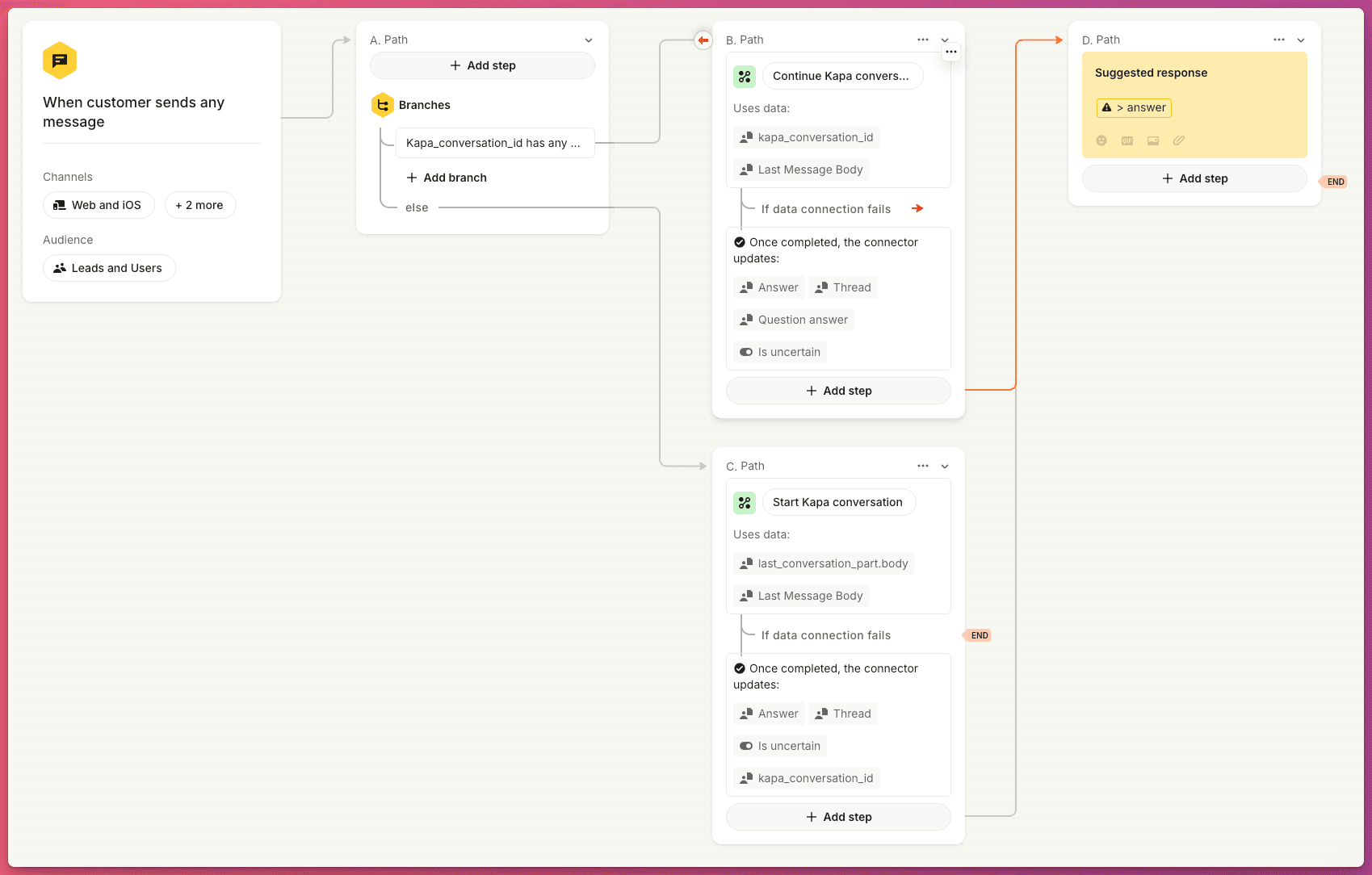
Step 5: Build the workflow
This is where the logic comes together. Go to Fin AI Agent → Workflows, click New workflow, and start with a blank canvas.
Trigger
Pick Customer sends any message (or "Customer sends their first message" if you only want to co-pilot openers). This fires the workflow on every inbound customer message in scope.
Branch on kapa_conversation_id
Add a Branch step right after the trigger. Configure two paths:
If
kapa_conversation_idis empty - new conversation, no Kapa thread yet.If
kapa_conversation_idis not empty - existing conversation, continue the thread.
"New conversation" branch
In this branch:
Trigger data connector →
Start Kapa conversation. Pass the latest customer message as thequeryinput.Update conversation attribute → set
kapa_conversation_idto thethread_idfield returned by the connector. This is the bit that makes the conversation multi-turn aware.
"Existing conversation" branch
Almost identical, just calling the other connector:
Trigger data connector →
Continue Kapa conversation. Pass the latest customer message asqueryand the existingkapa_conversation_idasthread_id.
Bringing them together
Both branches should leave to a single Add internal note action to save you some repetition. Your note might look like:
Kapa suggested reply
{answer}
You can use Fin's attribute inserter to pull answer from the connector's response. The note lands silently in the conversation, visible to agents but not to the customer.
Your workflow should now look something like this:
Optional: auto-send confident answers
If you want Fin to send Kapa's answer directly to the customer when Kapa is confident, add one more branch step after the data connector call in each path:
If
is_uncertainisfalse→ Send a message step, body{...answer}. The customer gets Kapa's reply directly.If
is_uncertainistrue→ fall through to the internal note path you already built, so a human agent picks it up.
Two pieces of advice if you're rolling this out:
Start in shadow mode. Run the integration for a week with the auto-send branch disabled. Read every Kapa draft against what your team actually sent. You'll quickly calibrate whether
is_uncertain == falsecorresponds to "actually correct" in your domain.Use Fin audiences as a release valve. Scope the auto-send branch to a small audience first (e.g. free-tier users, or a specific test segment) before opening it up to everyone. Fin's audience controls on workflows let you do this without rebuilding the workflow.
A few things worth noting
X-API-KEY, notAuthorization. Worth repeating - Kapa's API rejects bearer-styleAuthorization: Bearer ...headers. The header key must be exactlyX-API-KEY, set via the Authentication token's "Key for request header" field.integration_idmatters. If you leave theintegration_idout of the request body, Kapa still answers, but those conversations show up as "Unknown" integration in the Kapa dashboard - you lose the ability to slice analytics by source. Always include it.Conversation attribute, not temporary attribute. Temporary attributes get blown away between workflow runs. If you store
thread_idin a temporary attribute, Kapa will start a fresh thread on every customer message and lose all conversational context. Use a real conversation attribute.Rate limits. Kapa's HTTP API is rate-limited per API key. For most Fin volumes that's a non-issue, but if you're routing very high-volume support traffic, talk to support@kapa.ai about higher limits before going live.
Test connection != production behaviour. Fin's Test connection button fires a real request to Kapa, but with placeholder data inputs. The first real customer message is the one to watch. Open the data connector's Logs tab after going live to spot 4xx/5xx failures fast - Fin retains 14 days of execution logs.
One Kapa thread per Fin conversation. This pattern assumes a 1:1 mapping between Fin conversations and Kapa threads. If your support model reuses one Fin conversation across multiple unrelated customer questions, consider clearing
kapa_conversation_idperiodically (e.g. on conversation reopen) so Kapa doesn't drag stale context forward.
Wrap-up
That's the whole setup. One Authentication token, one conversation attribute, two data connectors, one workflow - and every conversation that hits Fin now has a Kapa-drafted, docs-grounded reply waiting for the human agent. Turn on the auto-send branch and Kapa moves from co-pilot to deflection engine for high-confidence answers, with humans still owning anything Kapa isn't sure about.
The MCP-based integration we covered previously and this Workflow-based one solve adjacent problems: MCP gives Fin's AI Agent autonomous access to your docs as a tool; the co-pilot pattern in this guide gives you deterministic control over when Kapa runs and where its answer ends up. Plenty of teams run both - MCP for the AI Agent's reasoning, the co-pilot Workflow for human-in-the-loop conversations - and they coexist happily.
If you run into anything weird, the Kapa API reference and Fin's data connector documentation are the canonical references. And if you'd find a packaged Kapa integration inside Fin's connector library useful, drop us a line - we're listening.


