How to plug Kapa into Fin with MCP
Connect your Kapa knowledge base to Fin over MCP, so every customer conversation has your docs on tap.

by
Karl Jones
If you're running Fin as your front-line AI agent and Kapa as the brains behind your developer documentation, there's a clean way to combine the two: connect Kapa's hosted MCP server to Fin as a Custom MCP data connector. Fin gets first-class access to your product knowledge, and you don't have to maintain a single line of glue code.
This post walks through the whole setup end to end - a quick pass through Kapa to spin up the MCP server, then the longer bit inside Fin where you actually wire it into the agent. The whole thing takes about ten minutes if your accounts are already in place.
A note on naming, as of May 13, 2026, Intercom has officially renamed the company to Fin - taking the name of its flagship AI agent. Throughout this post, "Fin" refers to both the company and the AI agent product, which is how their own branding now works. You'll still see intercom.com URLs in the linked help docs and inside the product itself, we'd expect those to migrate over time, but for now they're the canonical sources.
Why?
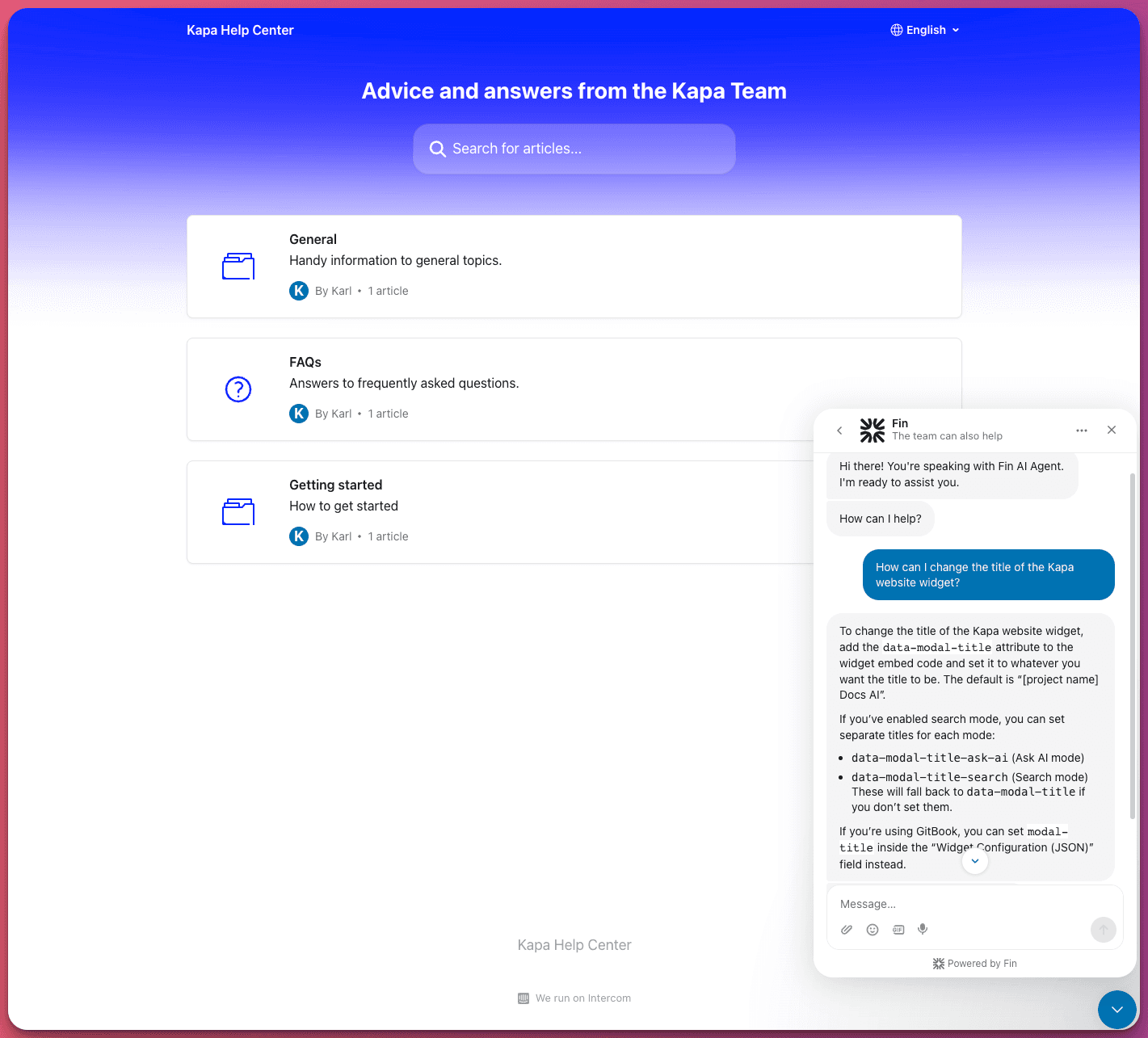
Fin is great at handling conversational support, deciding when a question warrants a tool call, and stitching answers back into the customer chat. What it doesn't have, out of the box, is deep knowledge of your product - the kind of detail buried in your docs, changelogs, SDK references, and tutorials. That's exactly what Kapa already indexes.
By exposing your Kapa project over MCP and registering it inside Fin as a data connector, every Fin conversation can fall back to semantic search across your knowledge base. Customers ask "how do I configure SSO?" and Fin can pull the relevant doc chunks in real time, with citations, without anyone having to write a workflow.
Prerequisites
A few things to check before you start:
A Kapa project with your data sources connected. If you haven't done that yet, start with Connecting Data Sources in the Kapa docs.
A Fin workspace hosted in the US. Fin's MCP connector feature does not currently support EU or AU data hosting regions - attempts to use it there return errors. Worth checking before you spend setup time on it.
Admin access on both sides - you'll need it in Kapa to add an integration, and in Fin to manage Data Connectors.
Step 1: Set up a hosted MCP server in Kapa
This part is fast. Kapa hosts the MCP server for you, so there's no infrastructure to stand up.
In your Kapa dashboard, go to Integrations → + Add new integration, pick Hosted MCP Server, and click Continue. You'll be asked for a few things:
Subdomain - this becomes the first part of your server URL, in the form
<subdomain>.mcp.kapa.ai. Pick something memorable; you'll paste it into Fin in a minute.Server name - the label that MCP clients see when listing tools. Cosmetic, but make it clear (e.g. "Acme Docs").
Authentication type - this matters. Kapa offers three options: Public (OAuth), API key, and Internal (Kapa account). For Fin, choose API key. Fin is a server-side agent making programmatic calls; it can't sit at a browser to complete a Google or GitHub OAuth flow, which is what the Public option requires. API key auth means Fin sends a bearer token on every request, which is exactly what Fin's Custom MCP supports.
Save the integration, then grab two things from the resulting screen and stash them somewhere safe for the next step:
Your MCP server URL (the full
https://<subdomain>.mcp.kapa.aiendpoint).Your project API key - this is what you'll hand to Fin as a bearer token.
That's the Kapa side done. If you want to dig deeper into source groups, retrieval tuning, rate limits, or the _meta parameters available to advanced agent builders, the full Hosted MCP server docs cover all of it. For most Fin setups, the defaults are fine.
Step 2: Add Kapa as a Custom MCP connector in Fin
Now over to Fin. Head to Settings → Integrations → Data connectors. You'll see a section called "Add Data Connectors from popular apps - powered by Model Context Protocol (MCP) servers" with tiles for the templated integrations (Linear, Stripe, Shopify). Kapa doesn't have a template yet, so you'll be using the Custom MCP tile.
Click it and you'll get a modal asking for:
Name - what this connector shows up as inside Fin. Something like "Kapa Docs" works well. This is also how the agent will refer to it internally.
URL - paste the Kapa MCP server URL from the previous step.
Access token - paste your Kapa project API key here. Fin will send this as a bearer token on every call to the Kapa server. If you leave the token field blank, Fin will try to initiate an OAuth flow with the MCP server, which Kapa's API-key-authenticated server isn't set up to handle, so make sure you provide the token.
Click Add MCP Server. The connector will appear in your list of data connectors with a (0) next to it - meaning the server is connected, but you haven't activated any of its tools yet.
Step 3: Add the search tool
Kapa's MCP server exposes a single tool: a semantic search function over your knowledge base, named something like search_acme_knowledge_sources (the product name comes from your Kapa project). One tool is all you need - it's the only thing Fin has to call to get docs context.
In your data connectors list, find the Kapa connector and click the + New button under it. Fin will pop a modal listing the available tools from the server. Click the search_<your_product>_knowledge_sources tool, and it'll get added to your connector. The counter next to "Kapa Docs" will tick up to (1).
Step 4: Configure the tool so Fin can actually use it
Adding the tool isn't enough on its own - like every Fin data connector, you have to configure it and set it live. Click into the newly added tool (it'll be called something like "Search kapa knowledge sources") and you'll land in a four-tab editor: 1 API, 2 Data, 3 Fin, 4 Security. The Save draft, Set live, and Fin preview buttons sit in the top right of the screen.
The good news is that most of the API tab is pre-filled by the MCP integration - that's the whole point of adding the tool from the connected server rather than wiring up a connector by hand. Walk through it anyway to confirm:
Description is an internal-only note describing the connector. Fin pre-populates it from Kapa's tool metadata (something like "Perform semantic retrieval over the documentation and other knowledge sources of Kapa and return the most relevant chunks for a given query…"). Leave it as-is unless you want to nudge how your teammates think about it.
Data inputs is where you define what Fin should collect from the conversation before calling the connector. Click + Data input and add the
queryparameter - this is the search string Fin will send to Kapa. Configure its source so Fin pulls it from conversation context, not by asking the customer outright. This is not optional.API endpoint is pre-filled with method POST and your Kapa MCP server URL, in the form
https://<subdomain>.mcp.kapa.ai. Sanity-check the subdomain matches the one you set up in Step 1.Body is pre-filled with a JSON-RPC payload that wraps Fin's
queryinput in the MCPtools/callenvelope - something along the lines of{"jsonrpc":"2.0","method":"tools/call","params":{"name":"search_kapa_knowledge_sources", "arguments": {"query", "{{query}}"}}}. Otherwise, you shouldn't need to touch this unless you want to add_metaparameters (Kapa's docs cover those if you do).Test lets you run either a Mock response for offline development or a Test live connection to fire a real request at the Kapa server. Always run a live test before going live - a successful response is a structured list of chunks with
source_urlandcontentfields. A 401 means your bearer token isn't right (fix in the Security tab); empty results usually mean you're pointing at the wrong Kapa project or its data sources haven't finished indexing.
The remaining three tabs are where you actually shape Fin's behaviour:
2 Data is where you tell Fin how to interpret and surface what Kapa sends back. Be deliberate here - anything Fin reads from a tool response can end up in a customer reply, so review the chunks and decide which fields Fin is allowed to quote.
3 Fin holds the Fin-specific controls - most importantly the toggle that lets Fin call the connector autonomously based on conversation context, rather than requiring it to be wired into a specific Workflow or Task. Turn this on for general-purpose docs search; that's the whole reason you're doing this. You can modify the Prompt in this tab to make it more specific about when Fin should call the Kapa tool.
4 Security is where the bearer token (your Kapa project API key) is stored, alongside any audience rules controlling which conversations the connector applies to. We recommend disabling "Authenticate customers ho match your authentication rules" to make this available to all users.
When everything looks right, hit Set live at the top right. The connector moves from Draft to Live, and Fin starts using it from that moment. The Fin preview button next to it lets you sanity-check how the tool behaves in a simulated conversation before you turn it loose on real customers - worth a minute of your time.
Writing a good Prompt for Fin
The single biggest lever for how well this integration performs in production isn't in the API tab - it's the Prompt field on the Fin tab. That's the description Fin reads when it's deciding, mid-conversation, whether to call the Kapa connector or do something else. A vague prompt means Fin under-calls the tool (and falls back to weaker answers). An over-eager prompt means Fin calls it for queries it can't help with. Worth spending real time on.
Kapa pre-fills a sensible default, but it's written to be generic across customers. You'll get better results by tailoring it. A few principles that hold up well in practice:
Lead with when to use the tool, not how it works. Fin doesn't need an essay on what semantic retrieval is - it needs to know which kinds of customer questions should trigger a call. Open with something like "Use this whenever the customer asks how to do something in [Product], how a feature works, what an error means, or how to integrate with the SDK or API."
Name the product and concrete domains. Generic descriptions like "use for product questions" give Fin almost no signal. Spell out your product name, your main features, your common terminology, and the surfaces your customers ask about - APIs, SDKs, dashboards, integrations, billing flows, whatever applies. Fin uses these as anchors when matching customer phrasing to the tool.
Describe what's in the knowledge base. "Documentation, API reference, SDK guides, tutorials, troubleshooting articles, changelog, and FAQ for [Product]" is more useful to Fin than "our docs." It also helps Fin avoid calling the tool for things that clearly aren't in there (billing, account, legal).
Disambiguate from your other connectors. If you're running Kapa alongside Stripe, Linear, Shopify, or other MCP connectors, add an explicit boundary: "Do not use this tool for billing, subscription, or account questions - those are handled by other connectors." Fin's routing improves dramatically when each tool has a clear lane.
Set expectations about output quality. Keep the line from Kapa's default that warns Fin about weak matches: "If the knowledge sources do not contain information relevant to the query, the returned chunks may be only weakly related or entirely unrelated." This nudges Fin not to over-trust low-relevance results and to fall back to other strategies (or to escalate to a human) when nothing relevant comes back.
Keep it tight. Three to five sentences is usually the sweet spot. Longer prompts dilute the signal Fin is matching against; shorter ones miss too much. If you find yourself writing a wall of text, you probably want a second connector with a narrower scope instead.
Once you've drafted something, hit the Optimize button below the prompt field - Fin will rewrite it using its own internal best practices, and the result is usually a useful starting point even if you reject it. After you go live, check the Fin preview behaviour on a handful of representative customer questions and refine. The first prompt you ship is rarely the one you end up running a month later, and that's fine.
A few gotchas worth noting
A handful of small things that have tripped people up:
One connector call per turn. Fin can only process one connector call per conversational turn. Kapa's MCP only exposes one tool and returns one consolidated response, so this isn't usually a problem - just be aware if you're combining it with other MCP connectors that return multiple SSE messages.
Rate limits. Kapa's API-key MCP is rate-limited to 60 requests per minute per team. For most Fin volumes, that's comfortably above your peak, but if you're routing very high-volume support traffic, reach out to support@kapa.ai for higher limits.
Region restriction. Again - US-hosted Fin workspaces only, at least for now. Don't skip prerequisite-checking on this one.
Source groups. If your Kapa project mixes public docs with internal-only sources, configure source groups on the Kapa MCP server before going live, so Fin can only ever search the public subset. You don't want Fin quoting an internal runbook to a customer.
One more thing…
Setting the connector live is necessary but not sufficient. If you haven't already turned on the Fin AI Agent for the channels you want it to handle - Messenger, email, WhatsApp, your help centre, wherever - none of this matters in practice, because no customer is actually talking to Fin yet. Setting a data connector live wires it into Fin's reasoning, but Fin still needs to be deployed on a customer-facing surface to do anything with it.
If you haven't done that part yet, head to AI Agent → Fin in your settings and walk through the deployment flow for each channel you want covered. Fin's own documentation is the canonical reference. Once that's done and your connector is live, the loop is closed: customer asks a product question, Fin recognises it can call Kapa, queries your docs, and answers with grounded, cited context.
Wrap-up
That's it. Once it's live, Fin will start citing your docs in responses without any further nudging from you, and you'll see the Kapa tool being invoked alongside whatever other connectors and workflows you already have running. The integration is shallow on purpose - one MCP server, one tool, one configuration screen - but the impact on Fin's answer quality for product-specific questions is hard to overstate.
If you run into anything weird, the Kapa MCP documentation and Fin's Custom MCP help article are the canonical references. And if you want us to add a Kapa template to Fin's connector gallery one day so you don't have to do the Custom MCP dance, drop us a line - we're listening.


