Bringing Your Knowledge into a Pylon Agent
Equip your Pylon agent with your product knowledge
Karl Jones
Your support agent is only as good as the knowledge behind it. Pylon's AI agent can resolve tickets automatically, but out of the box it only knows what's in your Pylon help centre - which means anything living in your product docs, API references, or engineering wikis is invisible to it.
That's the gap the Kapa MCP closes. By connecting Kapa as an MCP server, you give Pylon's agent direct access to your entire body of technical knowledge through a single integration. In this guide, we'll walk through why this matters and how to add the Kapa MCP to your Pylon agent.
Why?
So why route your Pylon agent through Kapa rather than just uploading more documents? Because Kapa isn't a static file store - it's a retrieval layer purpose-built for technical knowledge. It continuously ingests and keeps in sync with all your sources, including docs sites, GitHub repos, Slack and Discord history, changelogs, and support tickets, so the agent is always answering from your latest information rather than a stale snapshot.
Kapa also handles the hard parts of retrieval - ranking the right passages, grounding every answer in real sources, and refusing to guess when it doesn't know - which is exactly what you want standing between your customers and an automated reply. The result is that Pylon's agent stops being limited to your help centre and starts drawing on the same trusted knowledge base your team already relies on, with citations customers and agents can verify.
Prerequisites
A few things you'll need before you start:
A Kapa project with your data sources connected. If you haven't done so yet, start with Connecting Data Sources in the Kapa docs.
Kapa permissions to create integrations and API keys
Admin access to Pylon.
Step 1: Creating an MCP integration and API key in Kapa
If you already have an MCP server set up, you're welcome to use this within Pylon, but if you don't, or you'd rather have separate analytics for this integration, we can go ahead and create a new one. To do so, start by heading into the Kapa Dashboard.
Navigate to Integrations and click + Add new integration and select Hosted MCP Server and follow the prompts to set up the integration. Ensure that the Authentication type is set to API key. Copy the server URL - we'll use this later on.
Now that you've saved your new integration, it's time to create a new API key, head into API Keys and then + Add new API key and follow the instructions to create a new API key - save this for later, too.
Step 2: Creating a Pylon integration
Within Pylon, you'll need to create a new MCP integration, too. The custom MCP integrations sits alongside all of the other great integrations that Pylon offers to be used alongside your tickets. Navigate to Settings - Integrations to get started.
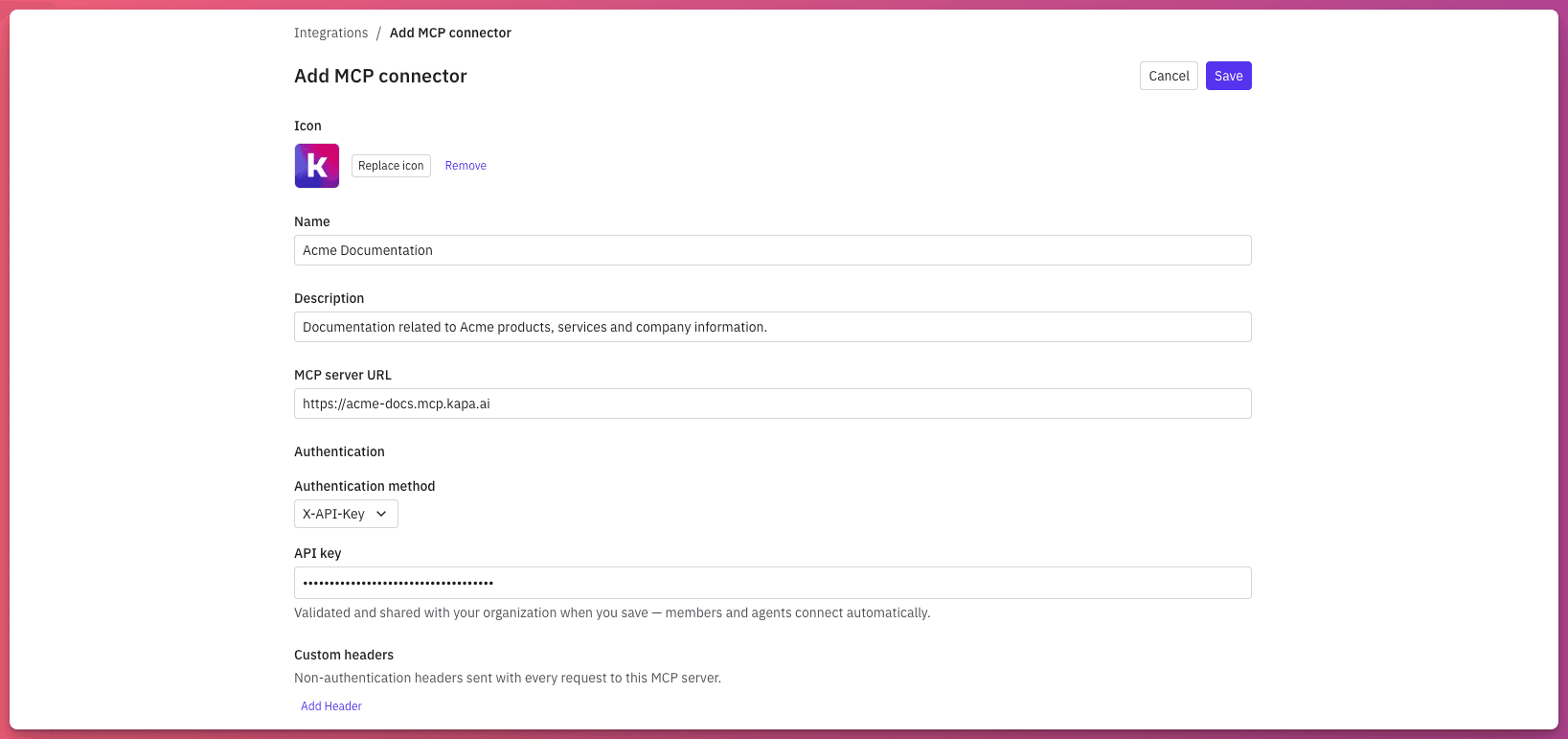
From here, you'll see the option to + Add MCP Connector, clicking this will start the process of being able to add your Kapa MCP. You'll need to enter the following details:
Name, give your MCP an identifiable name, such as "Acme Documentation".
Description, give your MCP an identifiable description, such as "Documentation about Acme products, services and company information".
MCP Server URL, this is the URL that you copied from Step 1. It's in the format of
https://<subdomain>.mcp.kapa.ai.Authentication method, you'll need to set this to
X-API-KEY.API Key, enter the API key that you created previously.
Then save!
Step 3: Test it
Wrap-up
That's it. With the Kapa MCP connected, your Pylon agent can now reach into your full body of technical knowledge - docs, API references, engineering wikis, and everything else in your Kapa project - without you having to duplicate any of it into Pylon. As you add or update sources in Kapa, the agent automatically answers from the latest version, so the integration stays current with no extra upkeep.
The payoff is a support agent that resolves more tickets on its own, with answers grounded in real sources and citations your customers and team can verify. From here, keep an eye on how the agent performs in Pylon and use Kapa's analytics to see what's being asked and where your documentation has gaps worth filling.


