How to Add Any Knowledge Source to n8n with MCP
Connect any company knowledge to n8n and build powerful automations using a Kapa MCP server
Simon Riggelsen
How to Add Any Knowledge Source to n8n with MCP
n8n lets you build AI agents and automations, but out of the box, those agents only know what's in their training data. They don't know anything about your company, your product, or your documentation.
This tutorial shows you how to connect your knowledge sources to n8n using MCP (Model Context Protocol). Once connected, your n8n AI agents can answer questions using your actual documentation instead of making things up.
What you'll learn:
What MCP is and why it's useful for n8n workflows
How to set up a Kapa MCP server for n8n
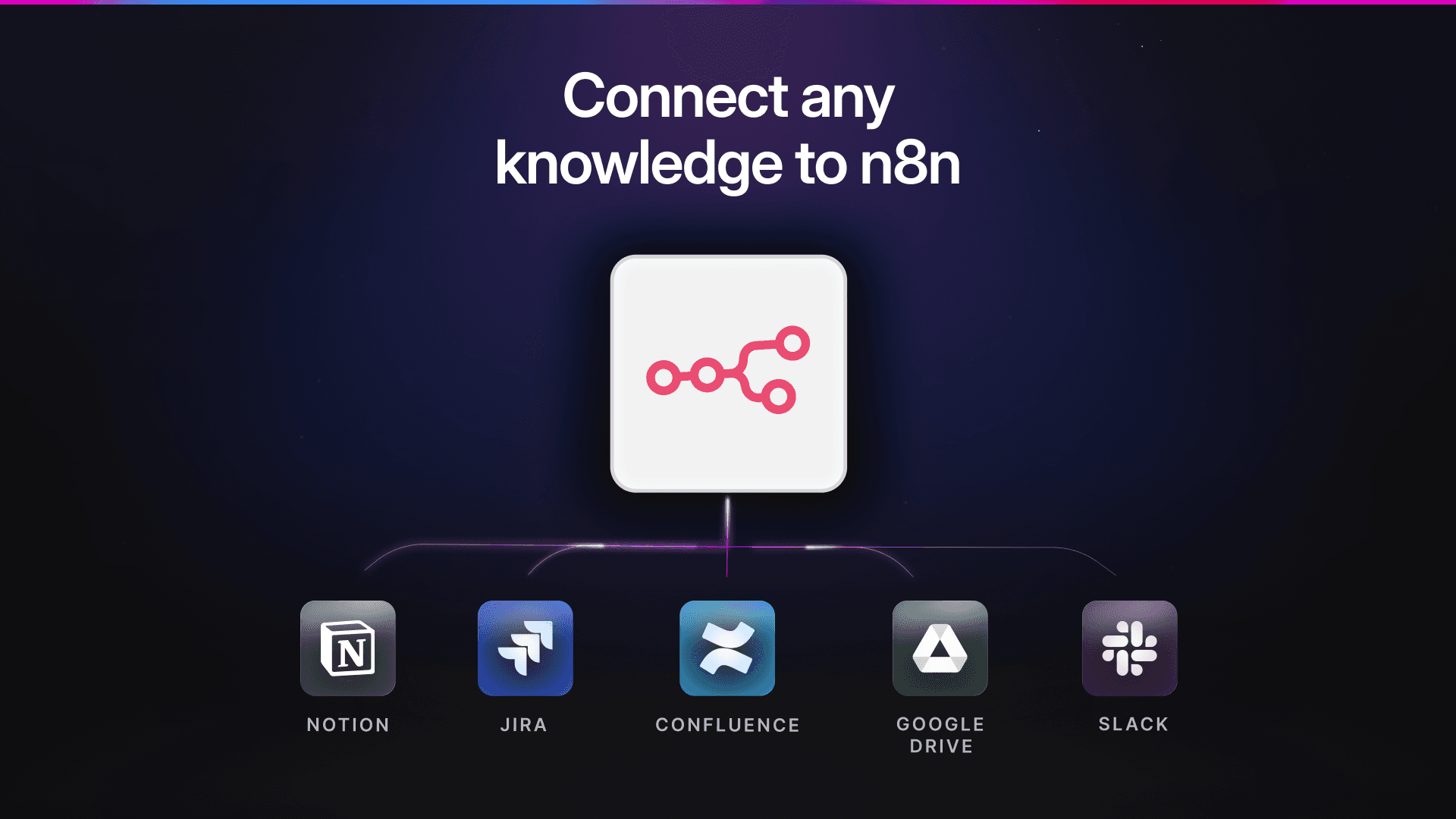
How to connect Notion, Confluence, Slack, Jira, and Google Drive
How to build a RAG workflow that queries your knowledge
What you'll need:
An n8n instance (cloud or self-hosted)
Access to the knowledge sources you want to connect
What is MCP and Why It Matters for n8n
MCP (Model Context Protocol) is an open standard that lets AI models connect to external data sources. Think of it as a universal adapter: you expose your data through one MCP server, and any MCP-compatible tool can access it.
Why does this matter for your n8n workflows?
n8n has built-in integrations for tools like Slack, Notion, and Google Drive. These are good for actions (sending messages, creating documents, moving files) but not for knowledge retrieval (finding relevant information to answer questions).
MCP gives your n8n agents a knowledge layer. When a user asks a question, the agent can search across all your connected sources and return accurate, up-to-date answers with citations.
How it works:
Kapa connects to your knowledge sources
Kapa indexes your content for accurate retrieval
Kapa exposes this knowledge via a hosted MCP server
n8n connects to the MCP server via API-key based authentication
Your n8n AI agent queries the knowledge base when answering questions
You get unified search across all your sources, and the retrieval is optimized for AI (chunked, embedded, and ranked by relevance).
Setting Up the Kapa MCP Server in n8n
Before connecting individual knowledge sources, you need to set up the MCP infrastructure. This takes about five minutes.
Part 1: Create a Hosted MCP Server in Kapa
Log in to your Kapa dashboard
Go to Integrations → Add new integration
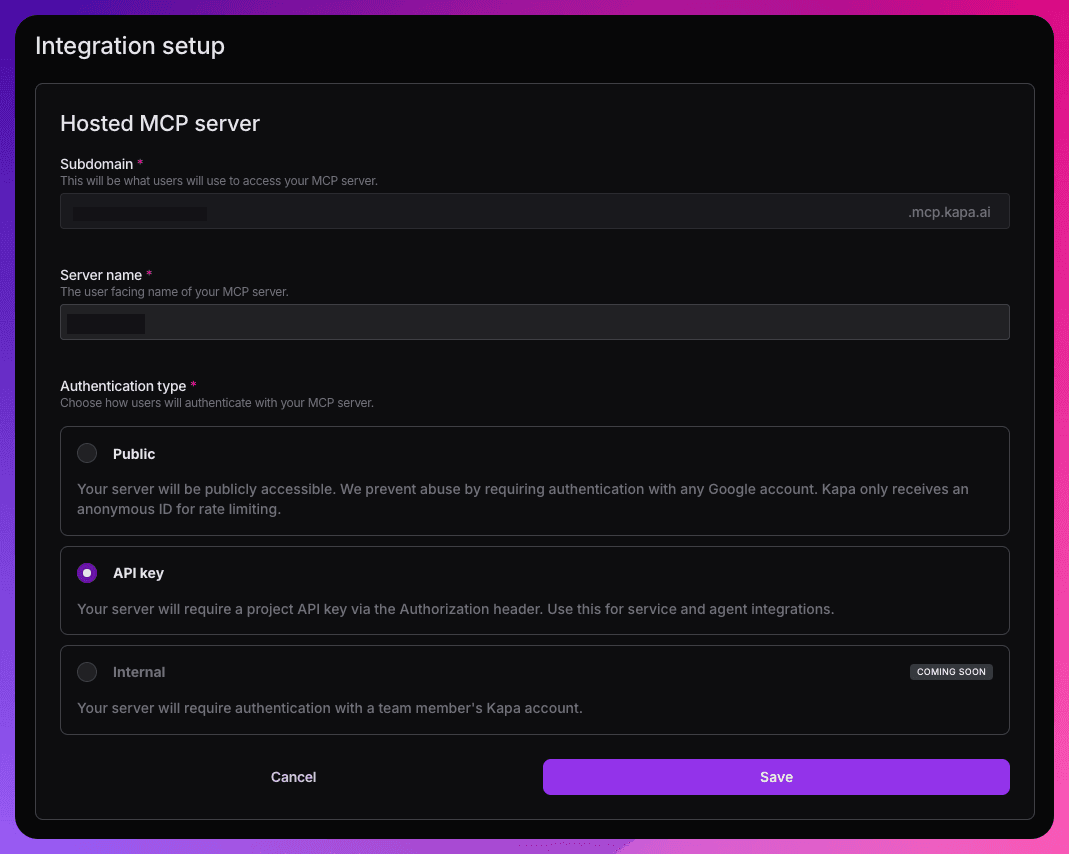
Select Hosted MCP Server
Configure the settings:
Subdomain: Choose a name (this becomes
<subdomain>.mcp.kapa.ai)Server name: A display name for the server
Authentication type: Select API key (required for n8n)
Click Save
Navigate to the API Keys section, and create an API key
Copy the MCP server URL and your API key
Your MCP server is now live at https://<subdomain>.mcp.kapa.ai.
Part 2: Add the MCP Client to n8n
n8n has a built-in MCP Client Tool node that connects to any MCP server.
In your n8n workflow, add an AI Agent node
Add an MCP Client Tool node and connect it to the agent's tools input
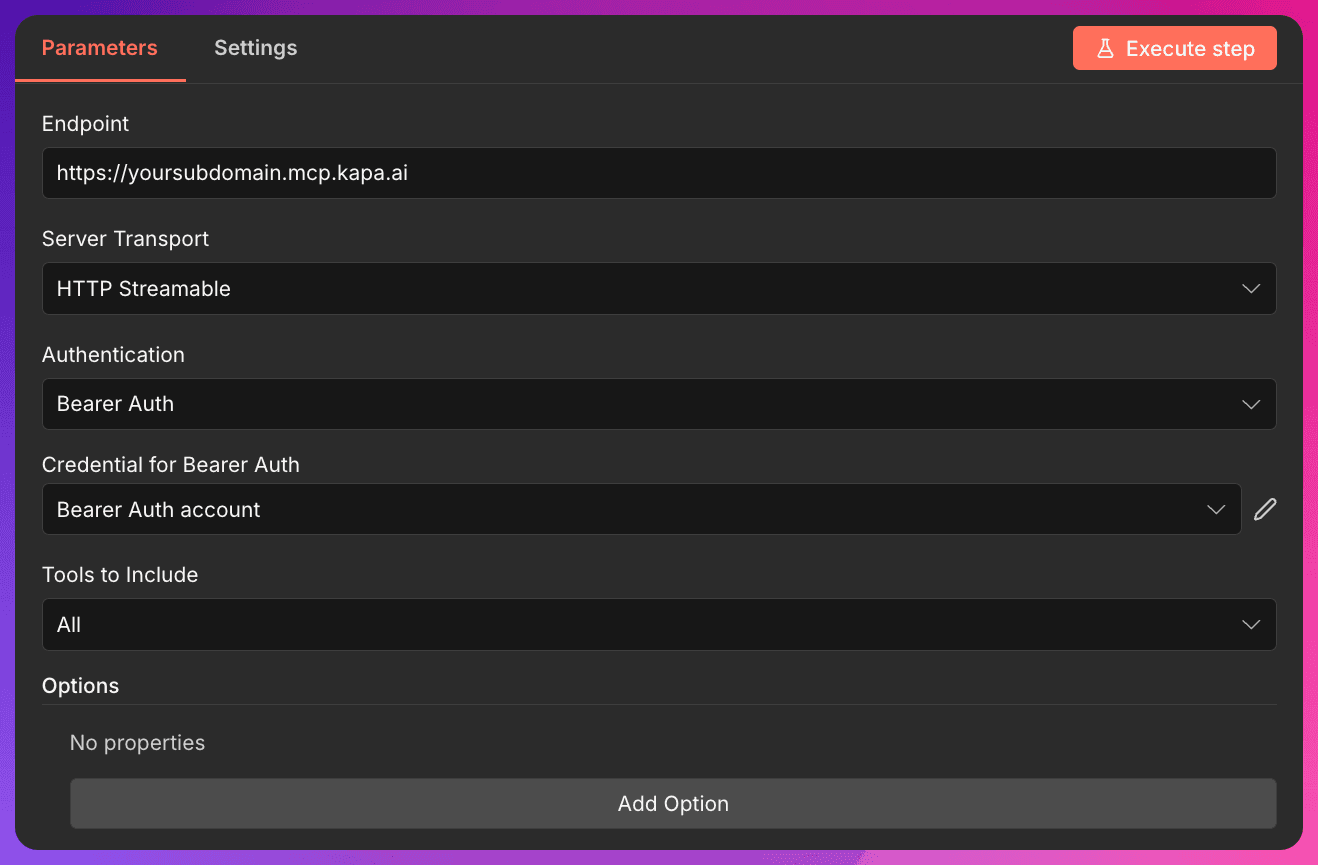
Configure the MCP Client Tool:
Endpoint: Your Kapa MCP URL (e.g.,
https://<subdomain>.mcp.kapa.ai)Server Transport: HTTP Streamable
Authentication: Bearer Auth
Credential for Bearer Auth: Bearer Auth account (press the 'pencil' icon and add your API key)
Tools to Include: All
Press 'Execute Step' to verify that the MCP server authentication works
Your n8n agent can now query your Kapa knowledge base. Next, you need to connect your knowledge sources.
Connecting Notion to n8n via MCP
Notion works well for internal wikis, product specs, and team documentation.
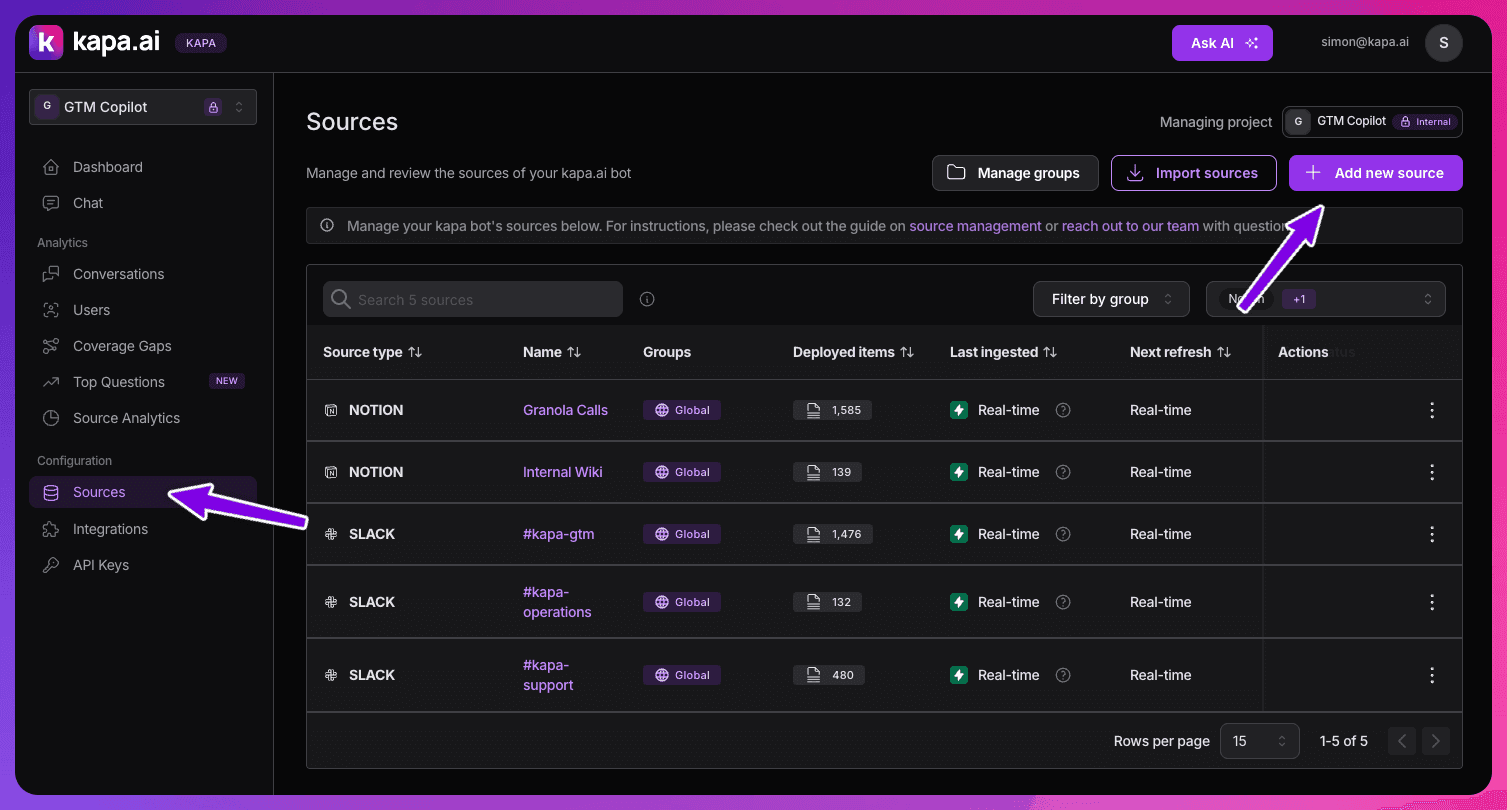
In the Kapa dashboard, go to Sources → Add new source
Select Notion
Create a Notion integration:
Visit the Notion integrations settings page
Click Create new integration & give it a name
Select the appropriate workspace and click 'Submit'
Copy the Internal Integration Token
Share the Notion pages you want indexed:
In Notion, open each page → click ⋯ → Connections → select your integration
Sharing a page also shares all its sub-pages
Configure the Kapa Platform
Go to the sources tab and click 'Add new source'
Select 'Notion' as the source type and paste your integration token into the provided field
Configure filtering if needed (include/exclude specific databases or pages)
Click Save
See documentation here. Your Notion content is searchable through the MCP Client Tool you already set up.
Connecting Confluence to n8n via MCP
Confluence is common for enterprise documentation: security policies, compliance procedures, onboarding guides.
In Kapa, go to Sources → Add new source → Confluence
Enter your credentials:
Confluence URL: Your instance URL (
https://companyname.atlassian.net)Username: Typically an email address
API Token: Generate one in your Atlassian account
Configure filtering:
Select which Spaces to include or exclude
Set date ranges for content freshness
Apply any additional filters as relevant
Click Save
See documentation here. Your Confluence content is now available through your MCP connection.
Connecting Slack to n8n via MCP
Slack history contains answered questions, troubleshooting discussions, and knowledge that never made it into documentation. Kapa can surface this for your n8n agents.
Create a Slack app for Kapa:
Go to api.slack.com/apps → Create New App
Select your workspace
Add required permissions (OAuth & Permissions):
channels:history,channels:readgroups:history,groups:read(for private channels)metadata.message:read,team:read,users:read
Install the app to your workspace and copy the Bot User OAuth Token
Get the channel ID:
Open the channel in Slack
Click the channel name → scroll to the bottom for the Channel ID
In Kapa, go to Sources → Add new source → Slack
Enter the bot token and channel ID
Invite the bot to the channel:
/invite @your-bot-nameClick Save
See documentation here. Repeat for each channel you want to index. Your Slack history is now searchable.
Connecting Jira to n8n via MCP
Connect Jira so your n8n agents can check issue status, find related bugs, and surface resolution history.
Generate an API token in your Atlassian account
In Kapa, go to Sources → Add new source → Jira
Enter your credentials:
Base URL: Your Jira URL (e.g.,
https://companyname.atlassian.net)Username: Typically an email address
API Token: The token you created
Configure filters to select which projects and issue types to include
Click Save
See documentation here. Your agent can answer questions about your Jira issues.
Connecting Google Drive to n8n via MCP
Google Drive often contains RFP responses, security questionnaires, company presentations and documents that don't live in your wiki.
In Kapa, go to Sources → Add new source → Google Drive
Authenticate with your Google Account (either a personal account or one created for the purpose)
Configure filtering:
Select which Folders to include and exclude
Select which Files to include and exclude
Click Save
Your uploaded documents are now searchable. See documentation here.
Building a RAG Workflow with Your Connected Knowledge
Now that your knowledge sources are connected, here's how to build a RAG workflow in n8n.
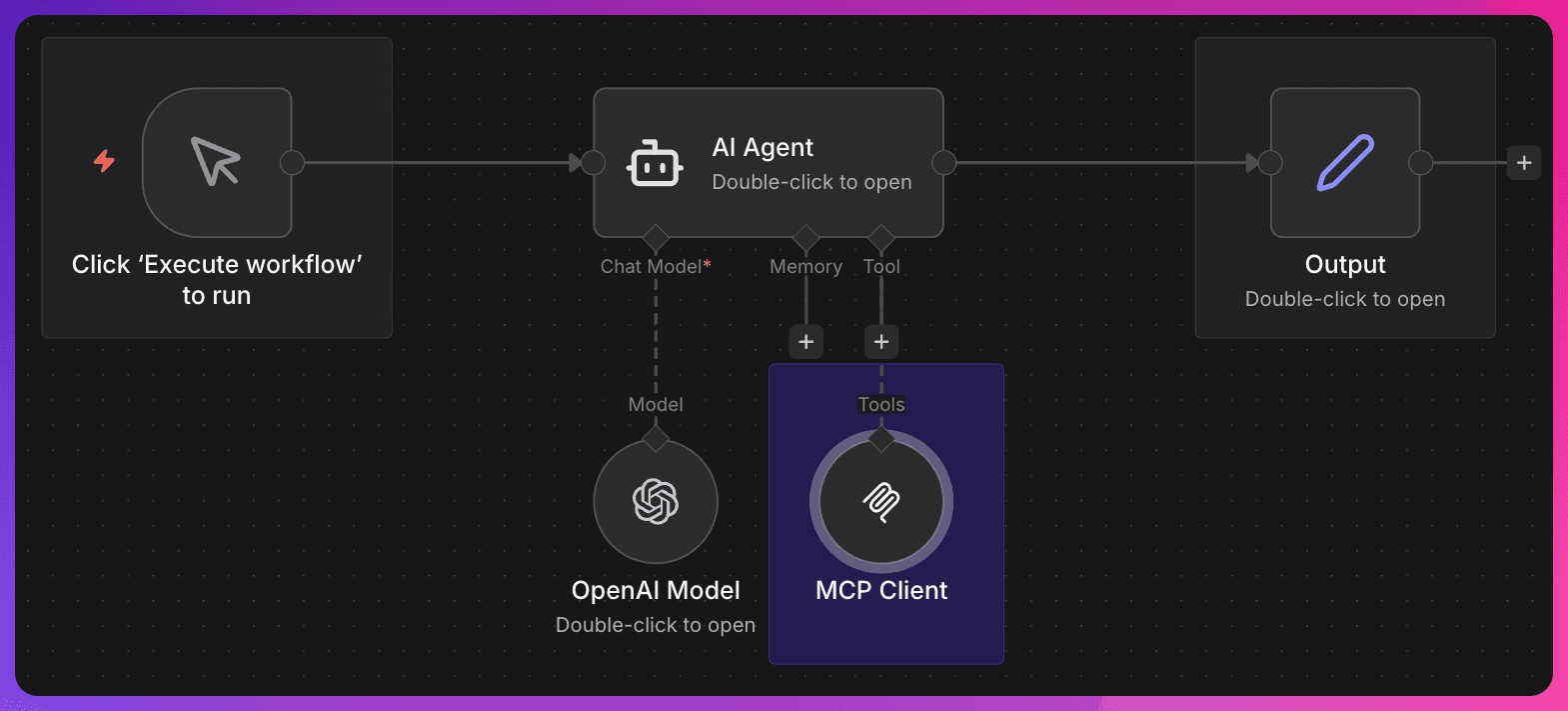
The Basic Pattern
Step-by-Step Setup
Add a Chat Trigger node
This receives the user's question
Add an AI Agent node
Connect it to the Chat Trigger
Set the Agent type to Tools Agent
Add a system message that matches your goal (workflow examples below)
Add an LLM Chat Model node
Connect it to the AI Agent's model input
Select a model (make sure to choose one with 'tool-calling' abilities, e.g., GPT 5.1)
Configure your API credentials
Add the MCP Client Tool node
Connect it to the AI Agent's tools input
Configure with your Kapa MCP URL and API key
Add a Window Buffer Memory node (optional)
Connect it to the AI Agent's memory input
This enables multi-turn conversations
Example Workflows You Can Build
Example Workflows You Can Build
Once your knowledge sources are connected, here are some automation workflows you can create:
Incident Response Automation
Trigger: PagerDuty or Opsgenie alert fires.
The workflow searches your runbooks, past incident postmortems, and related Jira issues to find relevant troubleshooting steps. It posts a summary to your incident Slack channel with links to the relevant documentation and similar past incidents. Your on-call engineer gets context immediately instead of hunting through Confluence at 3am.
Automated Ticket Triage
Trigger: New support ticket created (e.g., in Zendesk or Freshdesk).
The workflow analyzes the ticket content, searches your knowledge base for relevant documentation, and checks Jira for related open bugs. It then adds internal notes to the ticket: links to relevant docs, similar past tickets, and whether there's a known issue. Your support team sees this context before they even open the ticket.
RFP and Security Questionnaire Automation
Trigger: Spreadsheet uploaded to a specific Google Drive folder (or email attachment received).
The workflow reads each question, searches your connected sources (past RFP responses, security docs, compliance policies), and drafts answers in a new document. Your team reviews and edits instead of starting from scratch. A 200-question security questionnaire that took a day now takes an hour.
Documentation Gap Alerts
Trigger: Manually triggered by submitting a Coverage Gap (automatically identified by Kapa)
The workflow reviews the identified coverage gap, pulls recent support tickets and Slack questions, and automatically suggests changes to existing documentation. It can automatically create Jira tickets or Notion tasks for your docs team to address.
New Hire Access Provisioning
Trigger: New employee added to your HRIS (via webhook) or a form submission.
The workflow looks up the role in your Notion org chart, searches Confluence for the team's standard access requirements, and generates a checklist of systems to provision. It can create tickets in your IT queue or post to a Slack channel with the specific access needed for that role.
Customer Health Monitoring
Trigger: Scheduled daily, or webhook from your CRM.
The workflow pulls recent support tickets for each account, searches for patterns (repeated issues, escalations, bugs affecting them), and generates a health summary. Accounts with multiple unresolved issues get flagged automatically. Your CS team gets a daily digest instead of manually checking each account.
Release Notes Generation
Trigger: GitHub release published, or scheduled before each release.
The workflow pulls merged PRs and closed Jira issues since the last release, searches your docs for related feature pages, and drafts release notes. It groups changes by category and links to relevant documentation. Your product team edits a draft instead of compiling from scratch.
Next Steps
You now have everything you need to connect your company's knowledge to n8n workflows:
Set up Kapa with your knowledge sources
Create a hosted MCP server with API key authentication
Add the MCP Client Tool to your n8n AI Agent workflows
Build workflows that search your knowledge before answering
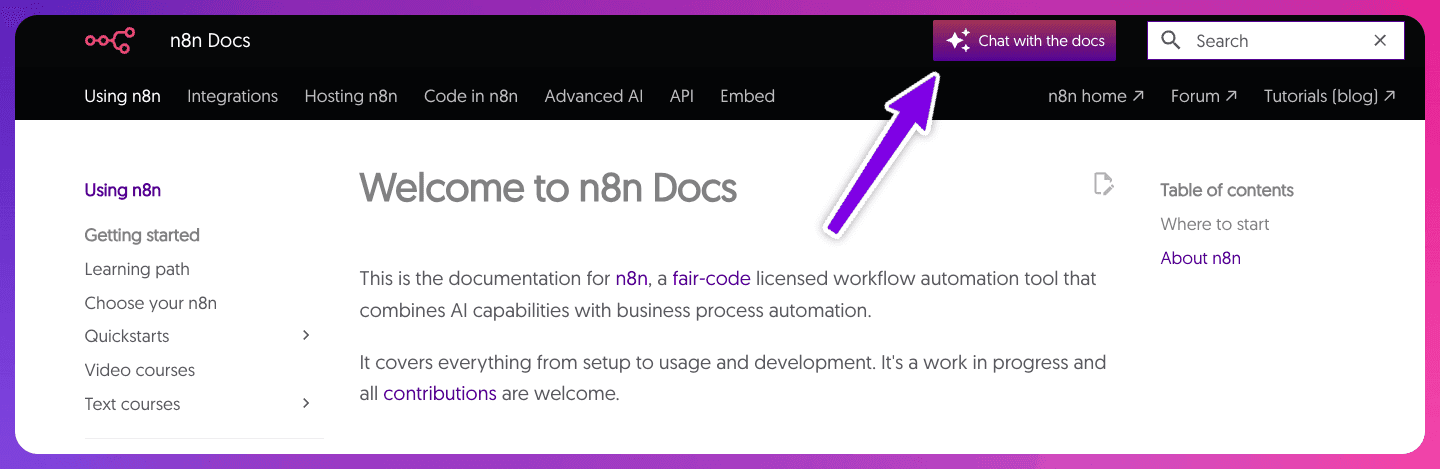
👀 Pro tip: for any n8n documentation related questions, use the Chat with the docs feature. You can even connect to the n8n knowledge from Cursor, Claude, etc via MCP (1-click install in the drop-down in the popup).
FAQ
What is MCP in n8n?
MCP (Model Context Protocol) is an open standard that lets AI models connect to external data sources. In n8n, you use the MCP Client Tool node to give your AI agents access to external knowledge bases through a single interface. Your agents can query documentation, search company knowledge, and retrieve context without building custom integrations for each source.
How do I connect an MCP server to n8n?
Add an MCP Client Tool node to your workflow
Enter the MCP server's endpoint
Configure authentication (Bearer token, Header auth, or OAuth2)
Connect the MCP Client Tool to your AI Agent's tools input
The agent automatically discovers available tools
For Kapa's hosted MCP server, use your URL (e.g., https://yourname.mcp.kapa.ai) and API key for Bearer authentication.
What knowledge sources can I connect to n8n using MCP?
Through Kapa's MCP server, you can connect 50+ sources to n8n:
Documentation: Web crawling, public docs sites
Wikis: Confluence, Notion
Communication: Slack, Discord
Issue tracking: Jira, Jira Service Management, GitHub Issues
Support: Zendesk tickets, Zendesk Help Center, Salesforce Knowledge
Code: GitHub files, GitHub Discussions, GitHub PRs
Files: Google Drive, direct file uploads, S3 storage
Community: Discourse forums, Stack Overflow
API specs: OpenAPI/Swagger documentation
Video: YouTube transcripts
All sources are searchable through a single MCP endpoint.
How is MCP different from n8n's built-in nodes?
n8n's built-in nodes (like Slack or Notion) handle actions: sending messages, creating pages, updating records. They execute operations through each platform's API.
MCP provides a knowledge layer optimized for retrieval, not actions. When you connect sources through MCP:
Content is chunked and embedded for semantic search
You get unified search across all sources
Results are ranked by relevance
The AI can cite sources in answers
Use native nodes when you need to do something (post a message, create a ticket). Use MCP when you need to find information (search documentation, look up past conversations).
Can I build a RAG chatbot in n8n with MCP?
Yes. Combine n8n's AI Agent node with an MCP knowledge source:
User asks a question via Chat Trigger
AI Agent receives the question
Agent calls the MCP tool to search your knowledge base
Relevant content comes back to the agent
Agent writes an answer using the retrieved context
Response goes back to the user
You get a chatbot that answers questions using your actual documentation. Deploy it as a standalone chat interface, embed it in internal tools, or connect it to Slack using n8n's native integrations.
Resources
Questions? Reach out to support@kapa.ai.


