You've set up your Kapa MCP server - one click, a subdomain, done. Your entire knowledge base is now accessible from Cursor, Claude Code, VS Code, Windsurf, ChatGPT, and every other MCP-compatible tool out there. The hard part is over, right?
Not quite. The real challenge isn't deploying the server. It's making sure your developers actually know it exists.
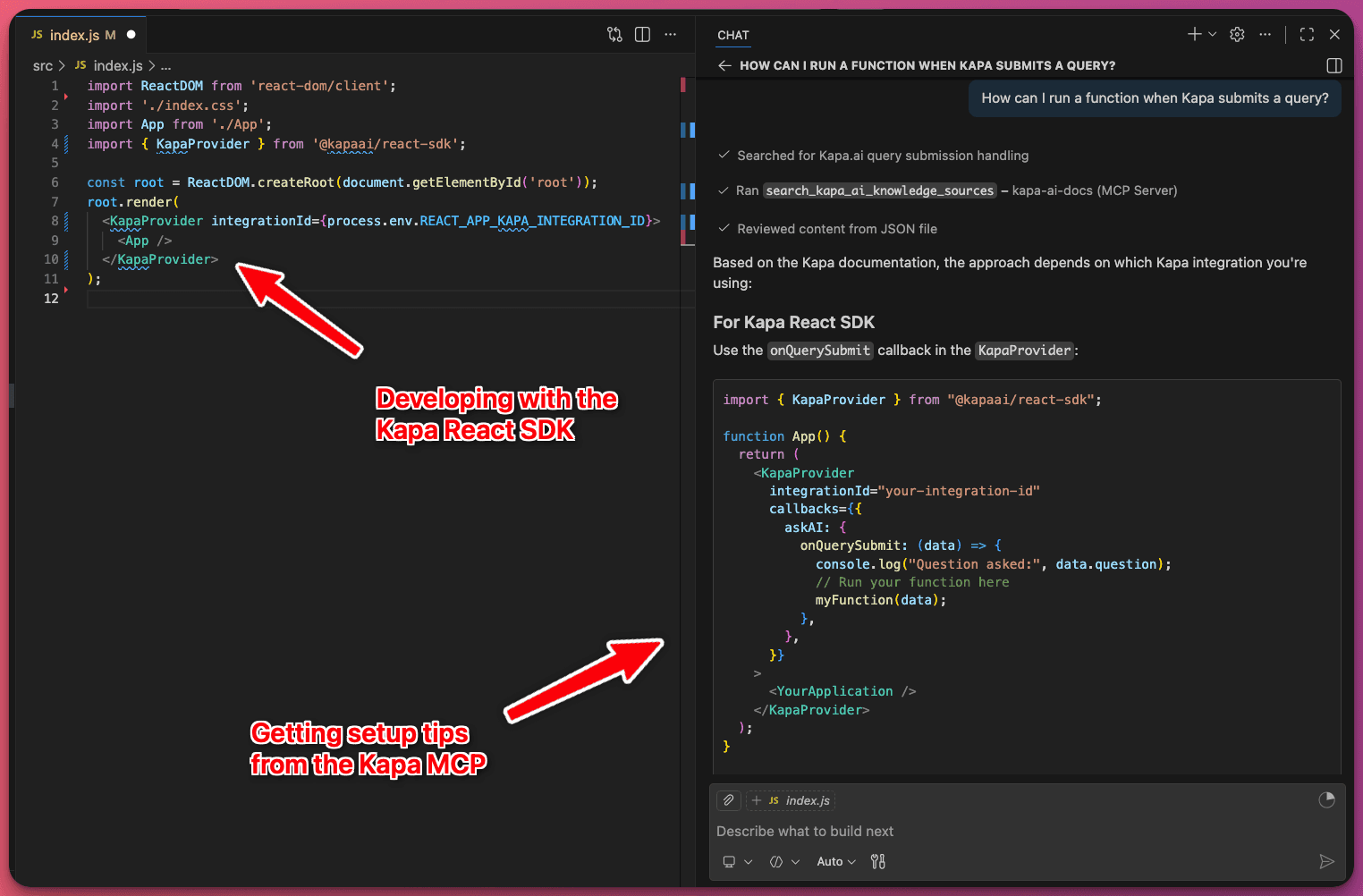
MCP servers are still a new concept for most developers. Even the ones who live in their IDE all day may not realize they can query your docs without ever leaving their editor. They're still tab-hopping to your documentation site, searching through Slack threads, and losing flow state every time they hit a question about your API. Let's look at an example using Kapa's MCP with Visual Studio Code:
Your job is to close that gap - to put your MCP server in front of your developer community in the right places, at the right moments, with the right message. The companies doing this well (think Redpanda, Planet, Expo, Medusa) aren't just shipping an integration and hoping people find it. They're actively driving adoption through a mix of in-product discovery, documentation, community outreach, and social proof.
This post walks through the playbook. We'll cover where to surface your MCP server, how to message it, and what the best-performing customers are doing to turn a one-click deployment into a high-adoption developer tool.
Website widget
The highest-leverage place to promote your MCP server is a place your developers are already interacting with - your Kapa website widget. If someone has opened your docs and clicked "Ask AI," they've already told you something important: they have a question and they want an AI-powered answer. That's exactly the moment to let them know they can get that same experience without ever leaving their editor.
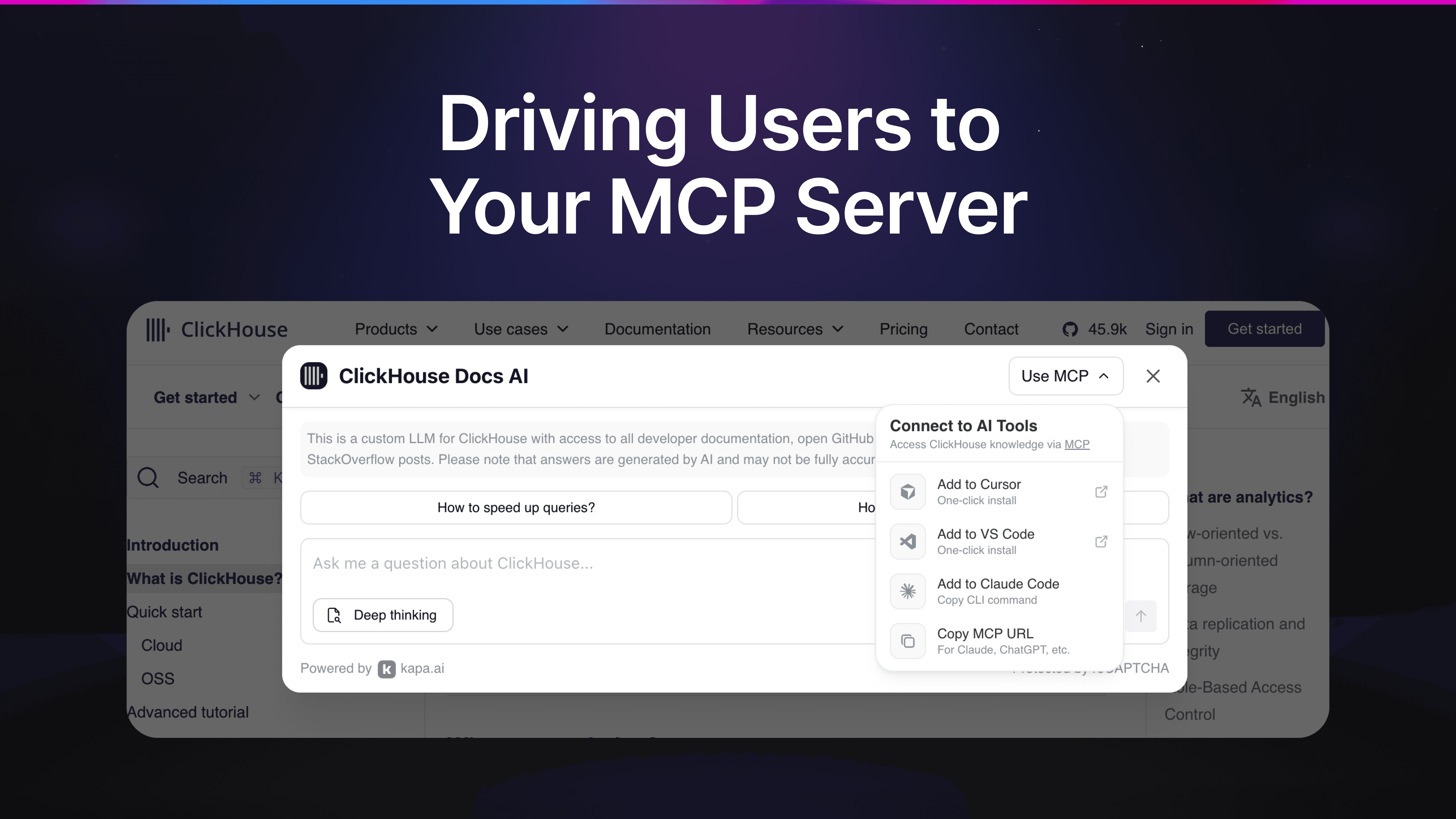
Kapa's widget includes a built-in MCP install menu that you can enable with just two attributes on your widget script tag: data-mcp-enabled="true" and data-mcp-server-url. Once enabled, a dropdown appears in the widget header giving your users one-click install options for Cursor and VS Code, a copy-paste CLI command for Claude Code, and the raw MCP URL for use with Claude Desktop, ChatGPT, or any other MCP-compatible tool. Take it for a spin on the docs of, for example, ClickHouse, n8n, and Temporal.
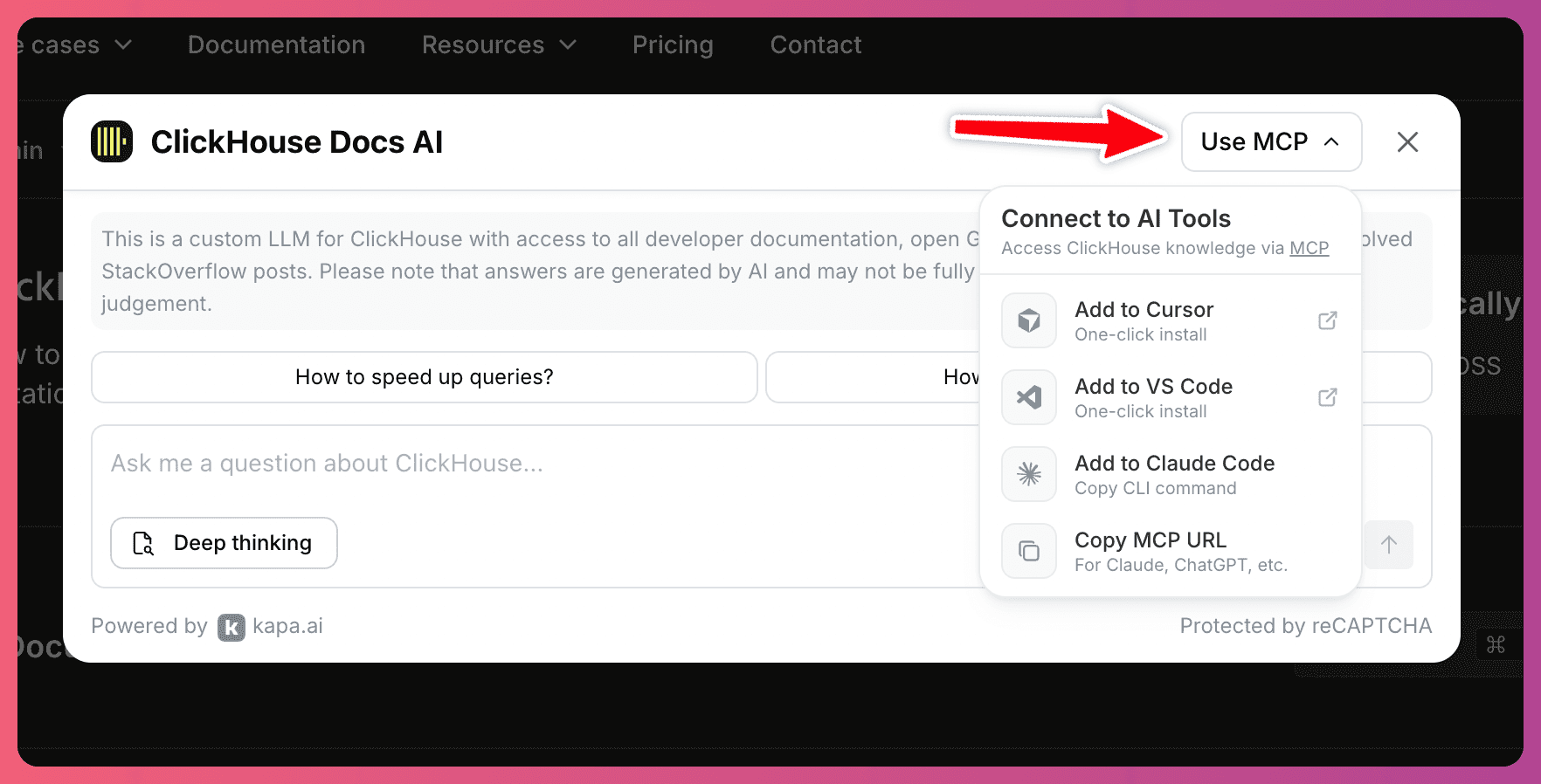
This matters because it catches developers at their point of highest intent. They're already asking questions about your product. The widget is essentially saying: "Like this? You can get it right in your IDE." It's the most natural upsell you'll ever make, and it requires zero additional engineering effort on your part.
Create a Dedicated "Build with AI" Page in Your Docs
The widget catches developers in the moment, but you also need a permanent home for your MCP server - somewhere people can find it when they go looking for it, and somewhere you can link to from announcements, READMEs, and onboarding guides.
The most effective approach we've seen is a dedicated documentation page that explains what your MCP server is, why it's useful, and how to set it up in every major AI tool. We built our own Build with AI page for exactly this purpose, and you're welcome to use it as a template for your own.
A good MCP docs page should cover:
A clear explanation of what connecting does. Don't assume your users know what MCP is. A sentence or two is enough - something like "Connect your AI coding assistant to our docs so it can answer questions about [your product] without you leaving your editor." Focus on the outcome, not the protocol.
Setup instructions for every major tool. Developers use different editors and AI assistants, and you don't want someone to bounce because their tool isn't listed. At minimum, cover Cursor, VS Code (with GitHub Copilot), Claude Code, Claude Desktop, and ChatGPT Desktop. Our Build with AI page includes config snippets for all of these plus Zed and Antigravity - feel free to adapt them with your own MCP server URL.
Example questions to try. This is easy to overlook but makes a real difference. Once someone has connected, they need a reason to actually use it. Give them three or four example queries that show off the value - things specific to your product like "What's the rate limit for the /search endpoint?" or "How do I configure OAuth with your SDK?" This turns a setup page into an activation page.
Redpanda is a great example here. They built a dedicated MCP setup page in their docs with tool-by-tool instructions, example prompts tailored to their product, and troubleshooting tips. It's thorough, easy to scan, and gives developers everything they need to go from zero to connected in a couple of minutes.
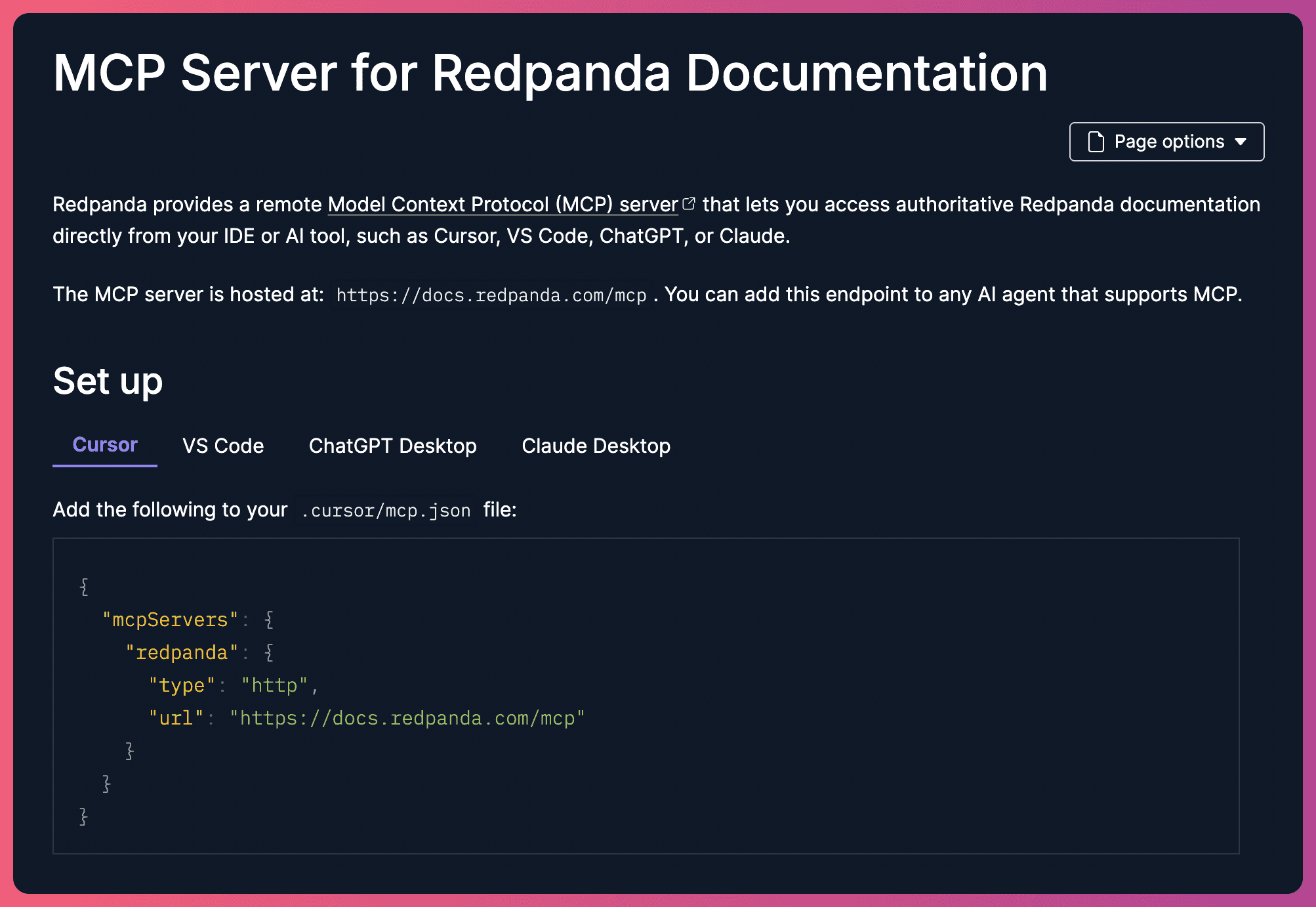
Once you've built the page, link to it from your main docs navigation, your getting started guides, and your README. Make it findable - not buried three clicks deep.
Go the Extra Mile: Announce It
A docs page and widget menu will drive steady, organic adoption over time. But if you want a spike, you need to tell people about it.
Write a blog post or changelog entry. This is the single most effective announcement format we've seen. Redpanda published a full blog post walking through their MCP server, complete with setup instructions and example queries. Planet Labs posted an announcement in their community forum. Both approaches work - the key is to frame it around the developer benefit ("query our docs from your IDE") rather than the technology ("we deployed an MCP server").
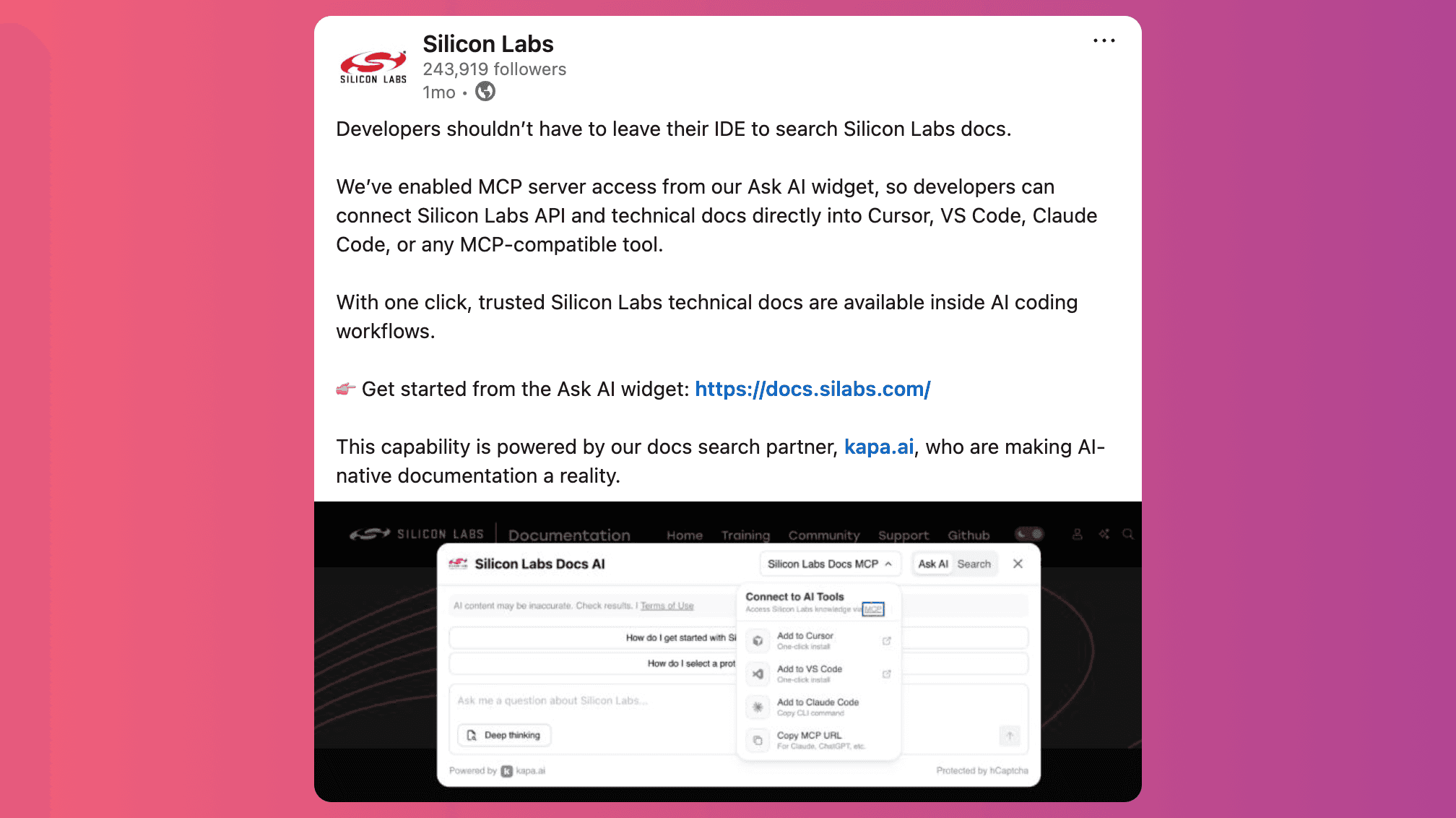
Post it on social media. A short post on X/Twitter, LinkedIn, or your community Discord/Slack goes a long way - check out how Silicon Labs did it. Developers share tools that make their lives easier, and an MCP server is exactly the kind of thing that gets retweeted. Keep it simple: a one-liner about what it does, a screenshot or GIF of it in action inside an IDE, and a link to your setup page. Bonus points if your DevRel team or engineers post from their personal accounts - developer-to-developer recommendations carry more weight than brand accounts.
Include it in your newsletter. If you have a developer newsletter or product update email, add a section about the MCP server. Even a few lines with a link to the docs page will drive installs from your most engaged audience.
Mention it in talks, webinars. If anyone on your team is presenting at a meetup, conference, or webinar, a quick mention of "by the way, you can connect our docs to your AI coding assistant" is a memorable takeaway. Developers remember practical tips more than slide decks.
Announce it on YouTube. Creating a video demonstrating the features of your MCP is a great way of users understanding what they can do with your MCP server. Expo created a full walkthrough with examples on how it can level up their users workflows in Visual Studio Code.
The goal isn't a one-time launch - it's building ongoing awareness. Every new developer who joins your community, reads your docs, or attends your events is someone who hasn't heard about your MCP server yet. Keep mentioning it.


