All articles
How to Automate RFP Responses with AI (Claude, ChatGPT + Your Docs)
Use kapa.ai's MCP to give Claude and ChatGPT access to your Confluence, Slack, and internal docs
Emil Sorensen
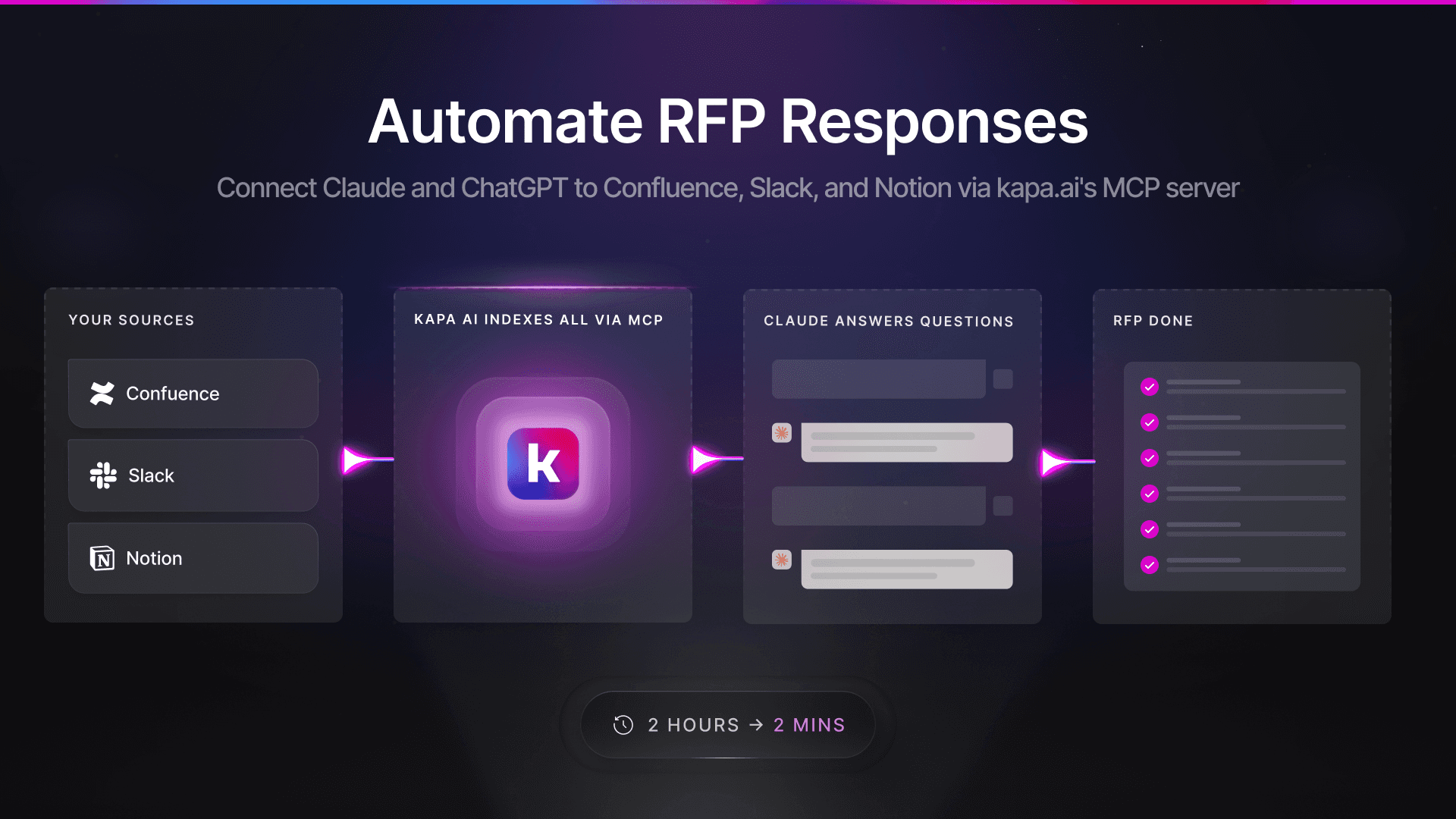
Most RFP questions have already been answered somewhere in your company. The problem is finding those answers. They're spread across Confluence pages, Slack threads, old questionnaires, security documentation, and Google Drive folders that haven't been touched in months.
This tutorial shows you how to connect Claude directly to your internal knowledge so it can answer RFP questions using your actual company documentation. The setup takes about an hour, and once it's done, you can fill out most RFPs in a few minutes instead of a few hours.
How it works
Kapa.ai indexes your company's knowledge sources (Confluence, Slack, Notion, Zendesk, GitHub, etc.) and makes them searchable via a single API. When you connect this to Claude as a custom connector, Claude can query your knowledge base mid-conversation.
So when Claude sees an RFP question like "What encryption standards do you use for data at rest?", it calls kapa, retrieves the relevant section from your security documentation, and uses that to write an accurate answer.
No hallucinations because the answers come from your actual docs. No copy-pasting because Claude writes directly into the spreadsheet.
What you need
A Claude Pro, Max, Team, or Enterprise account
A kapa.ai project (start a 14-day free trial if you don't have one)
Your knowledge sources connected to kapa
A hosted MCP server URL from kapa
Step 1: Connect your knowledge sources to kapa
The answers to RFP questions usually live in a few predictable places:
Source type | What's typically there |
|---|---|
Confluence | Security policies, compliance procedures, SOC 2 documentation |
Notion | Internal wikis, process docs, product specs |
Slack | Tribal knowledge, past answers to similar questions |
Google Drive / S3 | Old RFP responses, security questionnaires, audit reports |
Zendesk | Support tickets with compliance-related answers |
GitHub | README files, SECURITY.md, contribution guidelines |
Public Documentation | Product information, FAQs, features supported |
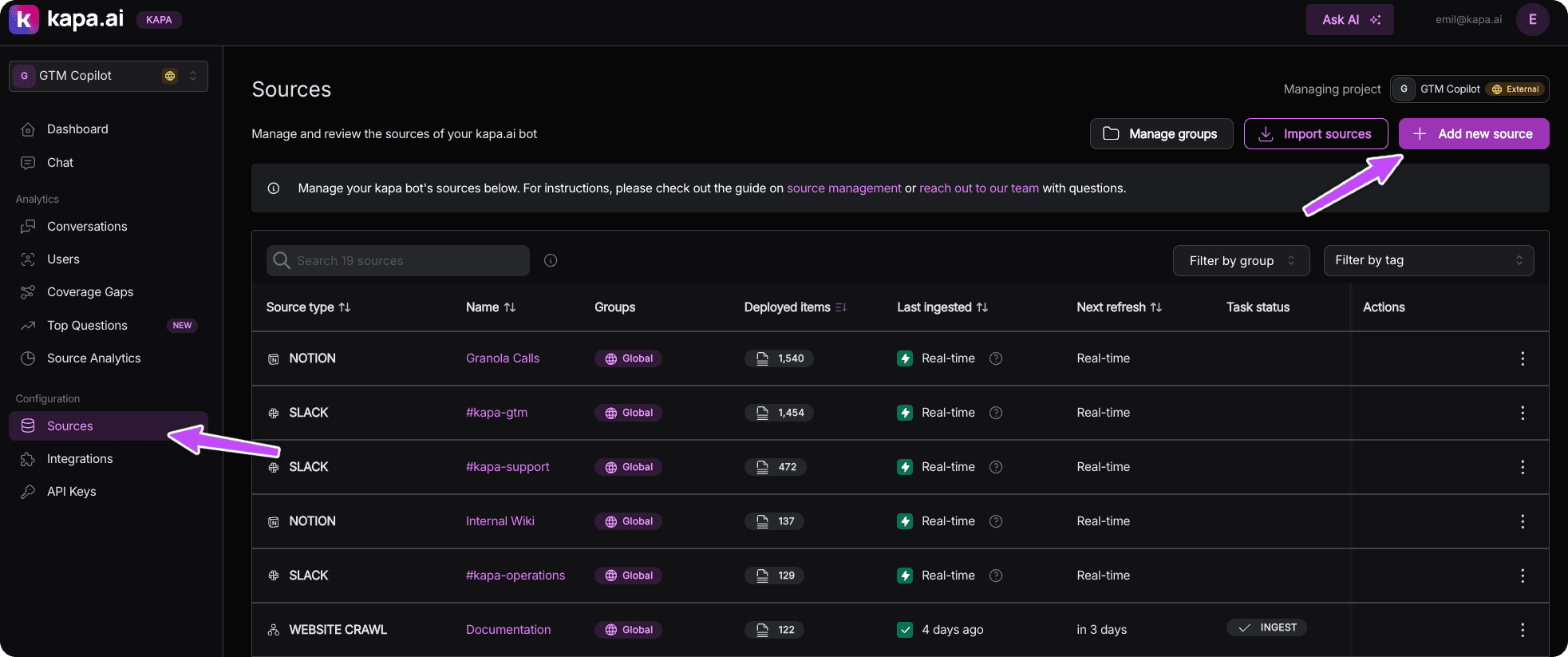
In the kapa dashboard:
Go to Sources → Add new source
Select the source type (e.g., Confluence)
Authenticate and choose which spaces or channels to include
Kapa indexes the content automatically
You can connect as many sources as you need. The full list of supported connectors is at docs.kapa.ai/data-sources/overview.
Tip: If you have old RFP responses in spreadsheets or PDFs, upload them directly via the File Upload connector. Kapa will use those past answers to inform new ones.
Step 2: Create a hosted MCP server
Kapa can host an MCP server for you so you don't have to manage any infrastructure.
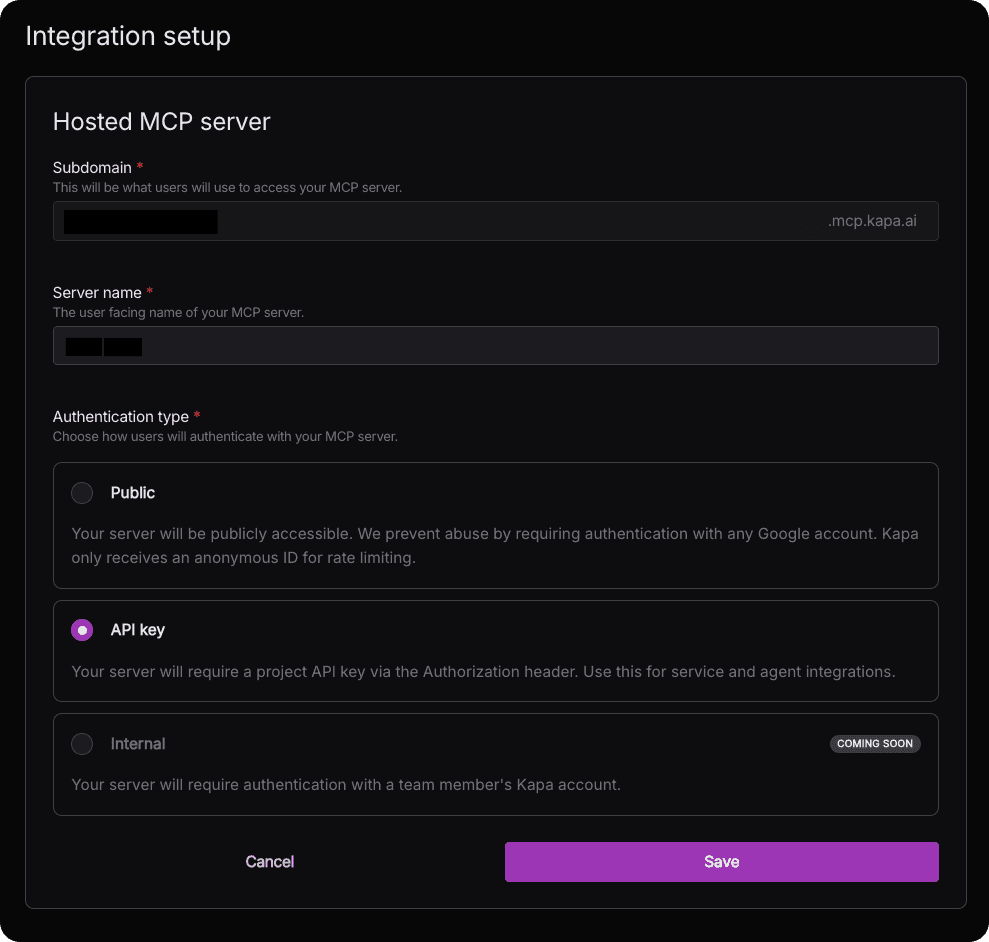
In kapa, go to Integrations → Add new integration
Select Hosted MCP Server
Choose a subdomain (this becomes
yourcompany.mcp.kapa.ai)Give it a name like "Company Knowledge" or "RFP Assistant"
Click Continue
Your MCP server is now live. Copy the URL.
Step 3: Add the connector to Claude
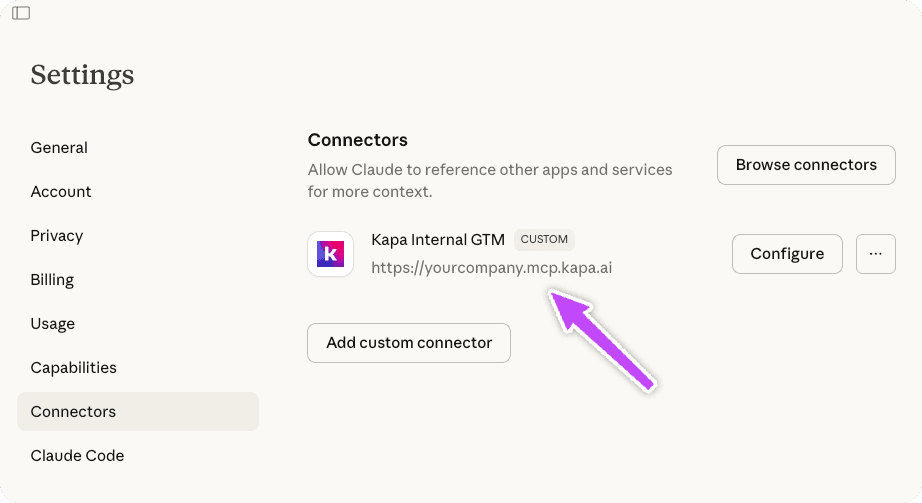
In Claude, go to Settings → Connectors
Click Add custom connector
Paste your MCP server URL (e.g.,
https://yourcompany.mcp.kapa.ai)Click Add
That's it. Claude can now query your company knowledge base.
For Team and Enterprise accounts, admins add connectors via Admin settings → Connectors. Individual users then connect and enable them.
Full details on Claude's connector setup: Getting Started with Custom Connectors
Step 4: Enable the connector in your conversation
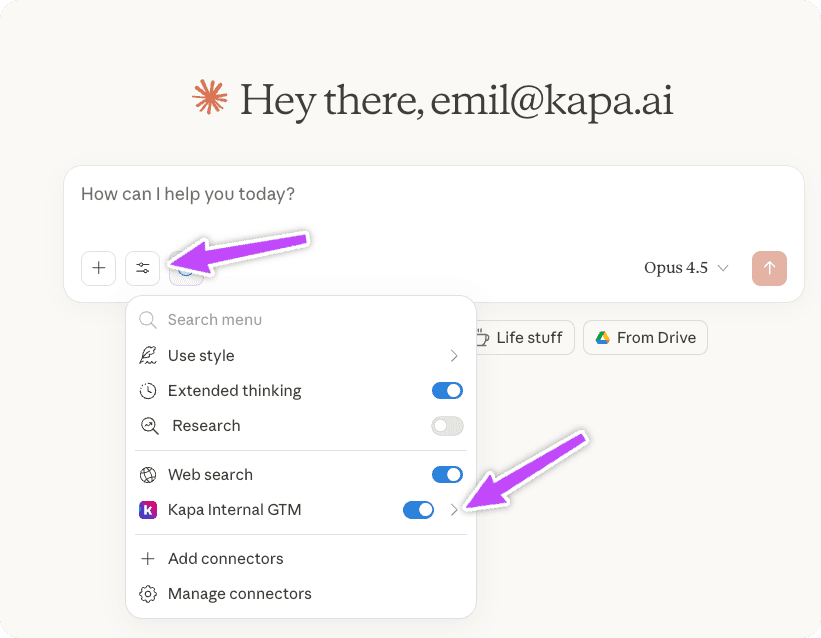
Before Claude can use the connector, you need to turn it on:
Start a new chat in Claude
Click Search and tools (bottom left)
Find your connector and click Connect
Authenticate if prompted (kapa uses Google sign-in for rate limiting)
Toggle on the tools you want Claude to use
Step 5: Fill out your RFP
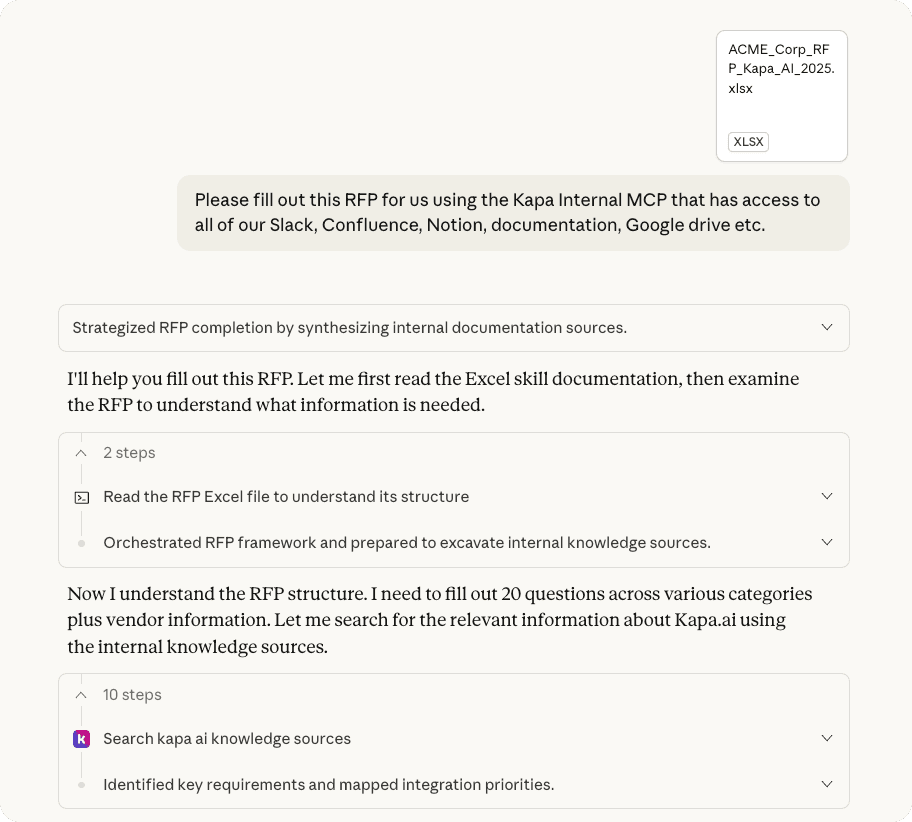
Upload your RFP spreadsheet to Claude. Then tell Claude what you want:
Claude will work through the questions one by one, calling kapa to find relevant documentation for each answer.
Some questions won't have answers in your knowledge base. Claude will tell you which ones it couldn't find information for so you can fill those in manually or add the missing content to your sources.
Using this with ChatGPT
ChatGPT also supports MCP servers. Enable Developer mode in ChatGPT settings, then add your kapa MCP URL under Settings → MCP Servers. See OpenAI's MCP documentation for the full setup.
FAQ
What if kapa doesn't have the answer to a question?
Claude will tell you it couldn't find relevant information. You can then either answer manually or add the missing content to one of your connected sources. Kapa refreshes sources automatically, so the answer will be available next time.
How is this different from dedicated RFP software like Loopio or 1up.ai?
Tools like Loopio require you to build and maintain a separate answer library inside their platform. With kapa, you connect sources that already exist. When someone updates a Confluence page, your RFP answers reflect that change automatically.
Can I use this for security questionnaires too?
Yes. Same workflow. Security questionnaires, vendor assessments, due diligence requests, compliance audits—anything where you're answering questions from information that already exists somewhere in your company.
Is this secure?
Kapa is SOC 2 Type II certified. Data is encrypted in transit and at rest. Kapa doesn't train on your data. You control exactly which sources are indexed. For internal sources, you can enable PII masking. See kapa.ai/security for details.
What knowledge sources does kapa support?
50+ native integrations including Confluence, Notion, Slack, Discord, GitHub (files, issues, PRs, discussions), Zendesk (tickets and help center), Salesforce Knowledge, Jira, YouTube transcripts, OpenAPI specs, and file uploads. Full list: docs.kapa.ai/data-sources/overview
Next steps
Start a kapa trial or log into your existing account
Connect the sources where your RFP answers live
Create a hosted MCP server
Add the connector to Claude
Upload an RFP and try it out
Questions about setup? Email support@kapa.ai.


